What Superhuman changes when AI works inside Gmail and Outlook
Superhuman’s Email Assistant handles inbox triage, reply drafts and reminders inside familiar mail clients. The real test is what happens to an important exception.
A customer asks for an updated quote on Tuesday. You spend Wednesday collecting the numbers. On Thursday another thread takes over your inbox, and the original request falls below the fold. The delay came from losing track of a promise made in an ordinary email.
Superhuman’s November 3 announcement brings its Email Assistant to Gmail and Outlook. The company describes an assistant that organizes messages, prepares drafts, brings pending exchanges back to attention and archives mail it identifies as low priority. That puts several jobs normally handled by inbox rules, calendar reminders and memory into the same workflow. For a small team, the question is which of those jobs to hand over first.
A draft and an archived message carry different consequences
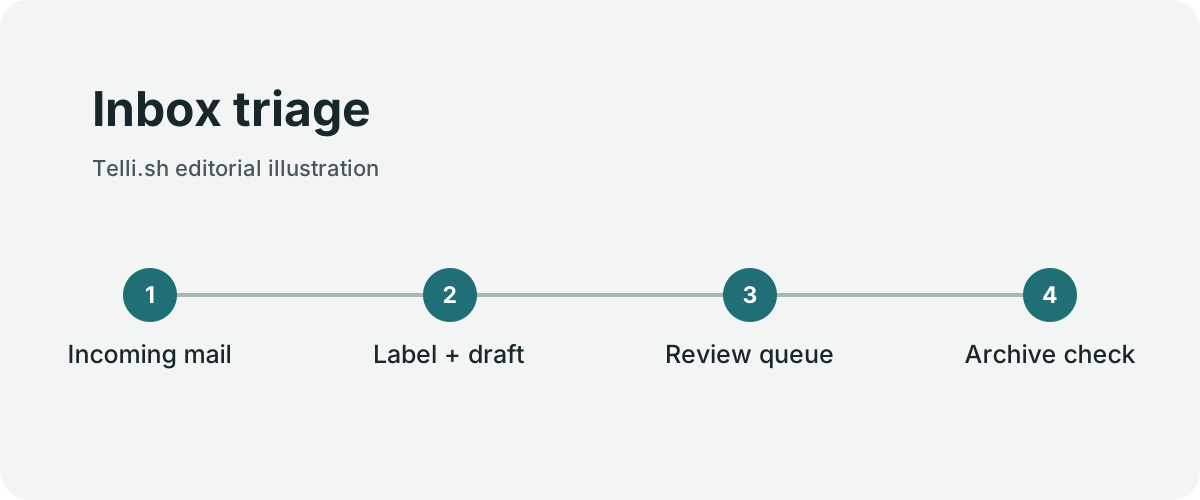
Inbox triage. Original illustration by Telli.sh.
You can look at an inaccurate draft and edit it before sending. An incorrectly archived message changes what you see. You may never learn that the assistant moved an important request until someone follows up by another route. Both features save clicks, but they deserve different thresholds for trust.
Superhuman says its assistant does not delete mail and does not send without permission. Those boundaries make it easier to experiment with drafts while keeping outgoing commitments under your control. They still leave an inbox decision that matters: a message can remain retrievable while disappearing from the view you rely on every morning. When you pilot automated sorting, make reviewing the archive part of the workflow.
| Job | Example | What to verify |
|---|---|---|
| Draft a reply | A prospect asks for an available meeting time | The date, time zone and intended attendees |
| Bring a thread back | A customer has yet to accept a quote | A later reply or a conversation on another channel |
| Sort incoming mail | A vendor sends monthly statements and urgent service notices | Whether exceptions reach the visible inbox |
| Archive low-priority mail | A newsletter arrives alongside a product recall notice | The rule distinguishes messages that look similar |
A single sender can send an advertisement on Monday and a critical change to a service on Friday. An assistant that learns patterns from the first message still needs to handle the second on its own terms. Look for repeated errors by message type, even if most of the messages it sorts are handled well. An overall acceptance rate can hide one category that is consistently mishandled.
The useful part of a follow-up is knowing why it is due
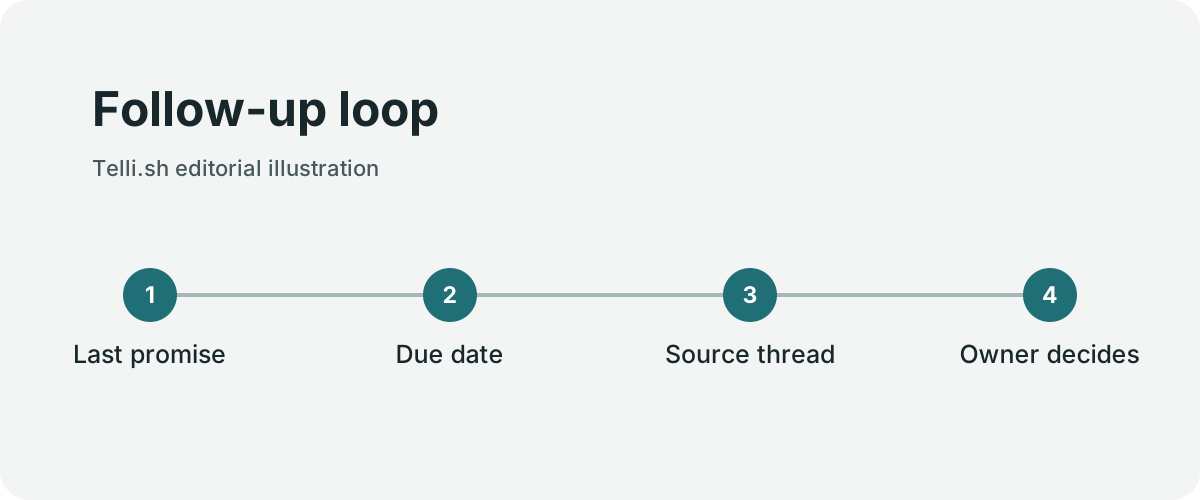
Follow-up loop. Original illustration by Telli.sh.
Consider a consultant who owes three proposals and is waiting on approvals for two more. A reminder that a thread has gone quiet can help them get back to the right conversation. The assistant can surface the thread and prepare language for the next reply. The consultant still needs to tell whether the silence is a delay, an agreed pause or the result of a decision made in a call.
An effective follow-up starts with the last confirmed state. If a customer said they would review the quote after a budget meeting next week, an earlier nudge can introduce friction. A reminder that points to the relevant sentence lets the user decide quickly. A reminder based only on elapsed time creates another small queue to process.
For a reply draft, check everything that could become a promise. A fluent sentence about shipping on Friday still needs the delivery schedule. A sentence offering a discount needs the applicable approval. Drafting creates value when it prepares the wording while keeping commitments visible to the person who owns them.
This also applies to tone. A routine reply to a colleague can be brief. The same brevity can sound abrupt in a customer dispute. Look for whether the draft adjusts to the relationship and the thread rather than merely copying a generic idea of your style. When the assistant has to infer intent, a short draft that asks a clear question can be a better starting point than a polished answer that assumes the outcome.
Start with a small inbox experiment
Use one mailbox and a defined class of mail. An individual consultant might start with ordinary scheduling threads. A team might start with a shared address dedicated to product inquiries, if the connector and company policy support that setup. Keep access to sensitive or highly variable mail under closer review until you know what the assistant does with it.
- Open Superhuman’s official Email Assistant entry point and check whether your Gmail or Outlook account and plan can connect. Review the consent screen and the organization’s policy before granting mailbox access.
- Start with a group of threads where reply drafting or follow-up reminders are easy to inspect. Record a few recent examples as a baseline, including examples that needed no automation.
- Compare each proposed reply with the source thread. Keep track of edits to names, dates, amounts and commitments. Those edits reveal the cost of checking an answer even when most of the wording is usable.
- Review the messages the assistant would deprioritize before relying on automatic archiving. If the available controls let you narrow the scope, prefer a bounded category with clear rules.
- At the end of the pilot, check which promises were kept, which follow-ups were missed and how many messages had to be recovered. Use the results to decide which functions belong in daily use.
Define success in terms that matter to the mailbox owner. If the goal is faster quotation turnaround, track time from request to first useful answer. If the goal is fewer missed replies, count requests that passed their agreed response time. Raw draft volume says little about either outcome.
One way to compare two weeks is to sample comparable threads and count the follow-up events. A team should keep sales inquiries separate from internal messages because the two categories have different timing and approval rules. If the sample is small, write down the examples as well as the totals. A single misrouted renewal request can matter more than ten neatly sorted newsletters.
A familiar inbox still has a new data path
The Gmail or Outlook window is where a person works. The assistant’s permissions determine what it can see and do behind that window. These are separate choices. An existing mail client can make adoption easier without answering who processes message content, what an administrator can restrict or how access is revoked.
For a work account, start with the current connection and policy screens. Read which mailbox scopes are requested and decide whether the task justifies them. Test what happens when the user disconnects the assistant and where the organization can audit that decision. This is especially relevant when a mailbox includes confidential attachments, HR issues or information shared by customers under contractual limits.
The same practical question applies to shared work. If two people see a resurfaced request, who owns the reply? A reminder can bring a task to attention without assigning it to a person. Preserve a simple handoff rule so the team can tell who is preparing the response and who will send it.
Why the default labels matter
Superhuman’s July 29 product changelog already described email assistance inside Superhuman Mail. The November announcement matters for people who want to keep the Gmail or Outlook interface they already use. The help pages are especially useful here because the controls are more specific than the launch headline. They describe six labels for triage, a digest, draft visibility and an option to override the treatment of messages from a sender. Gmail setup includes a purchase step. Verify account eligibility and the actual consent screen before planning a team rollout.
The Gmail and Outlook guides say messages labeled Respond, Waiting or FYI are excluded from automatic archiving. The guide also describes a higher-priority junk rule. That makes the inbox review more concrete. Look at the messages that received the wrong label, and check which result wins when a message matches more than one rule. The assistant could correctly detect that an invoice is informational and still miss that the attached payment notice is time-sensitive.
A sender override can make a small pilot easier. Suppose your accountant sends both an ordinary newsletter and the documents you must sign before a tax deadline. A rule that keeps that sender visible is a reasonable starting point when the volume is manageable. If the volume grows, splitting the conversation by mailing address or using a dedicated rule could make the exception easier to maintain. Compare the amount of clutter from the override with the effort needed to recover a missed deadline.
Sample a real day instead of a perfect demo
A support lead can take a small set of messages from an approved test mailbox and classify them manually before asking the assistant to sort them. Include an internal forwarded message, a supplier notice with an action hidden in an attachment, and a customer thread in which someone changed their answer. Check each result against the reference labels. For the messages the tool deprioritized, record why they mattered and how the operator found them afterward.
Then run the same check on a busy day. A digest is useful if it helps a person find work they would otherwise miss. Compare it with the inbox itself and the team's existing handoff process. If the digest contains twenty items but the user can act on only two, the better question is whether those two have an owner and a date. Look for a link to the original thread when the digest says that somebody is waiting.
There are several ways to score a bad draft. A wrong greeting is cheap to fix. A proposed date in the wrong time zone can create several emails. A made-up promise about refunds can become a dispute. Give each kind of correction its own category. The assistant is useful on a particular class of mail when the remaining review is predictable enough for the person to do quickly.
At the end of the week, sample the work that disappeared from the inbox as well as the work that became more visible. A team could accept more incorrect suggestions for newsletters if the product reliably protects unresolved customer requests. That result supports enabling a small set of actions. A broad claim about time saved does not tell the next mailbox owner where to begin.
Keep the queue meaningful
Superhuman's launch puts useful automation inside an interface many people already know. The more interesting change is that the assistant can affect what comes to your attention and what you are ready to say. The inbox becomes a queue whose rules deserve review, much like a team would review a support queue.
A good first test is a day with both routine email and one unusual, important request. Can you see why that request was surfaced? Can you find it if it was set aside? Can you confirm the details in the suggested answer without rebuilding the entire conversation? Those answers tell you whether the assistant has made the mailbox easier to run.
Sources
- Superhuman’s November 3 announcement and feature demonstrations
- Email Assistant for Gmail
- Email Assistant for Outlook
- Superhuman product changelog
For a searchable record of the conversations and decisions behind your work, Create a Telli.sh account.