Chrome’s Modern Web Guidance 1.0 puts AI-built forms to a keyboard test
Chrome’s new coding-agent guides use browser compatibility and expert advice to improve generated web code. A checkout form shows what to measure in your own project.
You tab into a checkout form and see an error on a field you haven't used yet. The hint disappears when you start typing. You open the delivery options and the next press of Tab moves behind the dialog. A quick visual preview can miss all three. A person buying something with a keyboard or screen reader encounters each one in the space of a minute.
On November 10, 2026, Chrome for Developers released Modern Web Guidance 1.0, a collection of skills that feeds web standards, implementation advice and browser compatibility data into coding agents. The release added a modernization scan and a public evaluation dashboard. Chrome also announced that Firefox and Edge were joining the project. Chrome’s 1.0 release
The tool is worth trying on one ordinary form. Keep the behavior the team already depends on, then compare what the agent changes after seeing browser and accessibility guidance. The result you want is a checkout people can actually finish in your supported browsers, with clear evidence that each change helped.
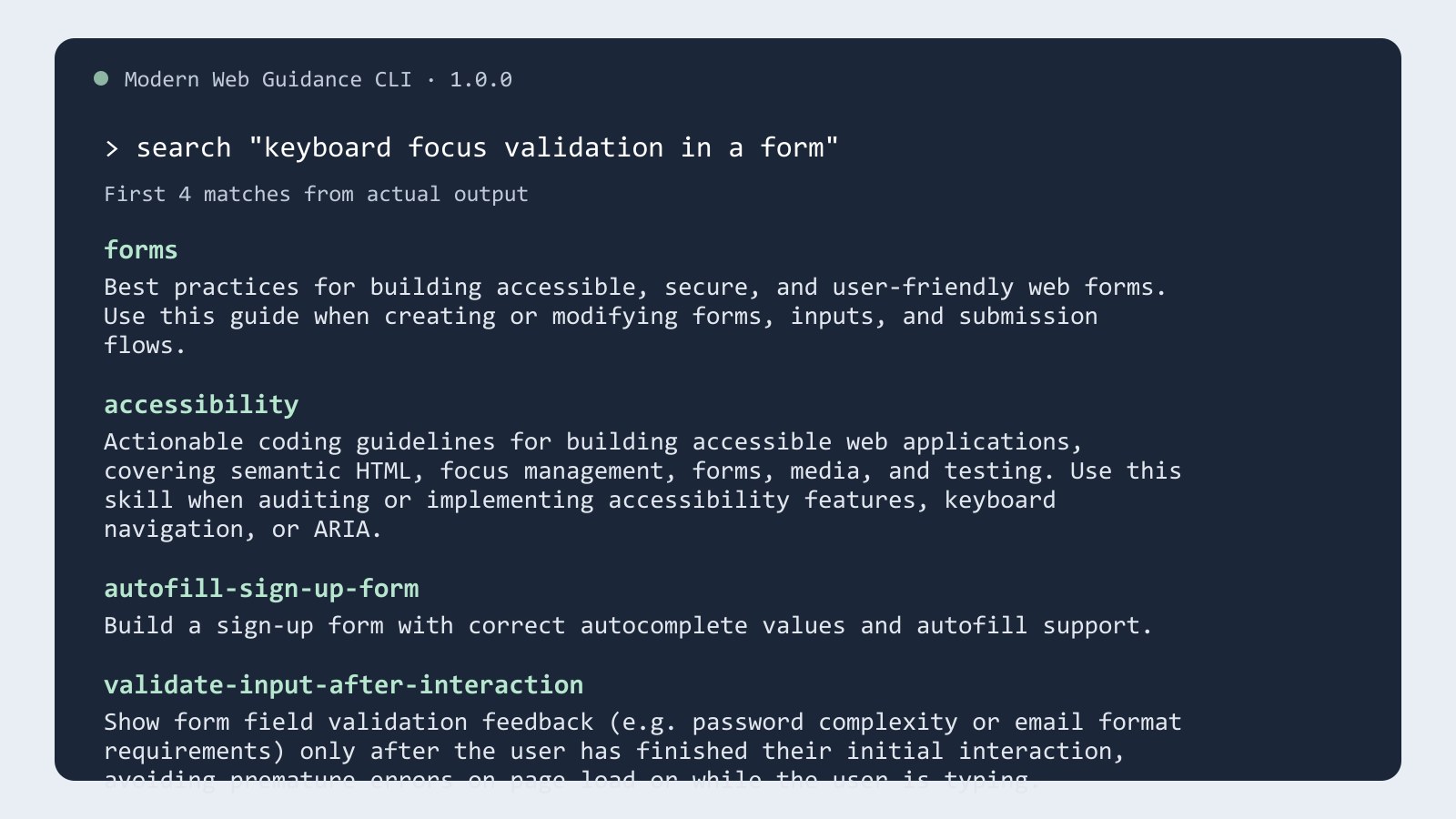
Actual results from Modern Web Guidance 1.0.0 for a form validation query. Telli.sh formatted the first four results from the local CLI. Chrome source and licenses
The Chrome team measured its checks rising from 52% to 91%
In a November 11 follow-up, Chrome's Philip Walton describes how the project tests each guide. It gives a coding agent the same task with and without the guidance installed, then checks the output against the expectations defined for that guide. A chart for November 9 reports an average of 52% without the skills and 91% with them across the evaluated frontier agents. That's a difference of 39 percentage points on the project's own checks. Chrome’s evaluation explanation
The paired approach is a useful model for testing your own feature. Both versions should start from the same code and receive the same requirement, while the acceptance checks describe behavior independently. For an address form, keep the initial values, session conditions and device settings consistent. A test can then ask whether someone can recover from a missing postal code or dismiss an overlay and resume entering an address.
The guide's results measure its defined checks. A change in your app can still run into product rules, older browser versions or a component library that owns the interaction. Measure the behavior your users depend on before deciding which patch to keep. The published guide assessment explains the scenarios and links to the dashboard so teams can see what each measure covers.
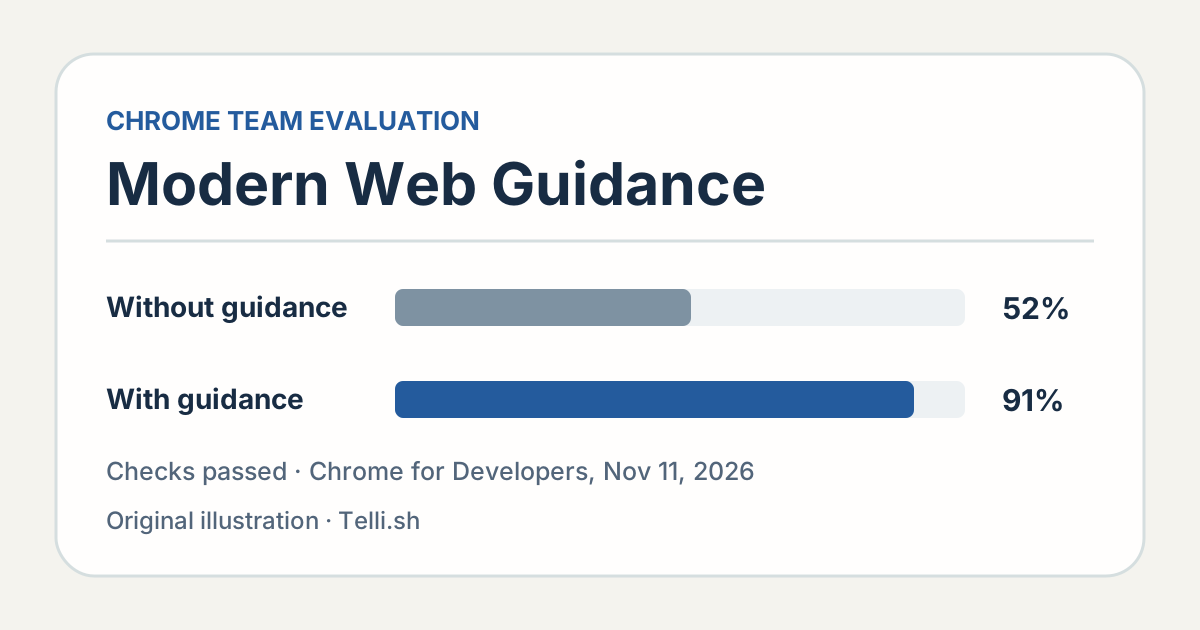
Chrome’s November 9, 2026 evaluation snapshot, published November 11. The figures show average pass rates on the team’s own checks. Chart by Telli.sh. Chrome evaluation
A good form explains what to fix at the moment it matters
Start with an easy example. An optional delivery instruction follows a required postal code. If someone tabs past the postal code while exploring the form, an immediate red error can make them think they have already failed. The useful behavior is to keep the input label visible, put essential formatting guidance where it can be read, and explain the problem when validation actually calls for correction.
Chrome's November 11 guide identifies several failures in generated forms, including prematurely showing required-field errors on blur, leaving the accessible invalid state out of sync with the visible message, and putting necessary format hints in a placeholder that disappears as the user types. An agent can make the form look right in its happy path and still leave a screen reader user with an ambiguous state after submission. Chrome’s form validation examples
Write a check someone can repeat. Leave the postal code blank, submit once, hear or read a specific message, then fix the field and submit again. Verify that the entered values remain, the message clears when appropriate, and the form moves to the next step only after a valid attempt. Include a paste from a password manager or mobile autofill if that is part of your normal workflow. Those details tell the reviewer what they should see, even when the implementation uses different components.
If the form has a delivery dialog, write a separate focus check. Open it from the keyboard and verify where focus lands. Move through the available controls, then dismiss it and see whether focus goes back to a sensible place, often the button that opened it. If that button disappears as a consequence of the action, decide what logical next element the person should reach. This can be tested as a behavior without requiring a particular component implementation.
| Scenario | Reproduce it | Expected result |
|---|---|---|
| Blank required field | Submit without entering a postal code | A clear message is connected to the field and the user can correct it |
| Dismissed delivery dialog | Open and close it using a keyboard | Focus returns to the trigger or the next logical control |
| Autofill | Try a supported browser’s address autofill | Values, labels and validation stay understandable |
| Reduced motion | Enable the OS setting and open the next view | The destination and interaction remain clear without unnecessary motion |
Browser requirements are an input to the agent
Chrome says Modern Web Guidance includes Baseline and browser compatibility information. That lets the agent recommend a browser feature with the project's support requirements in mind. A company managing its own employee laptops may control those versions tightly. A checkout for the public might need to handle older devices, mobile browsers and embedded web views where the company has no such control. Chrome’s explanation of Baseline integration · Baseline
Make the target explicit in the task. List the current supported versions and identify any special environments that affect the form. Give the agent the relevant form component and ask it to propose a small change it can explain. When an enhancement depends on a modern feature, ask which underlying behavior a supported browser will still receive when the enhancement is absent. The decision can be reviewed before any code lands.
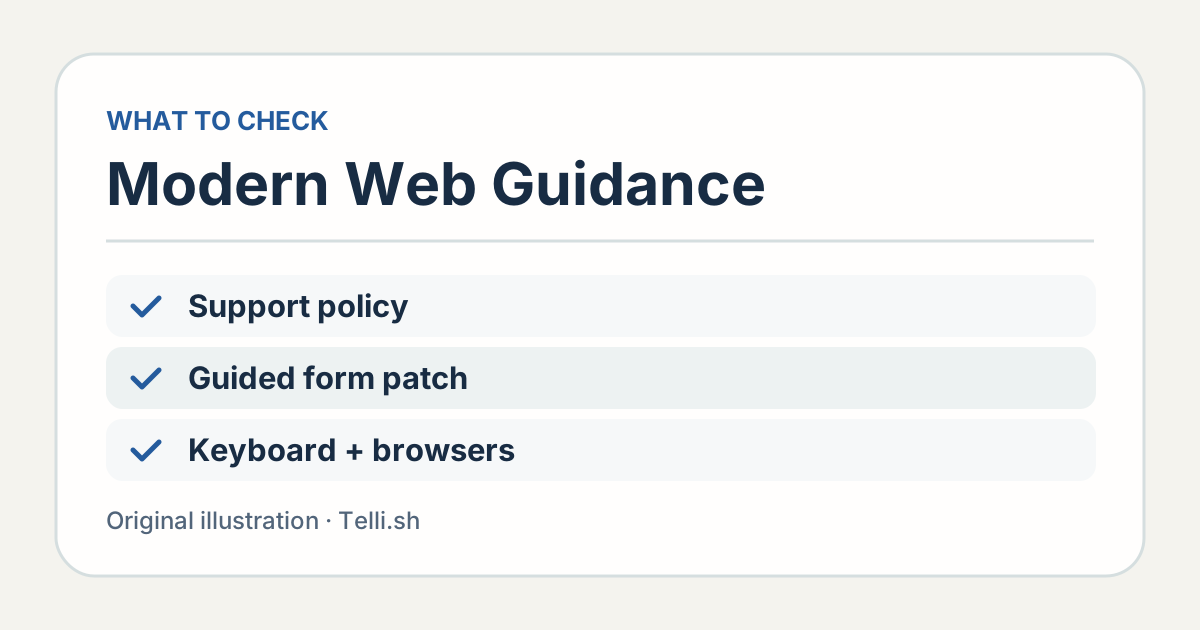
Browser guidance helps choose an implementation. The browser, keyboard and assistive-technology checks show whether it works for the people using the form. Illustration by Telli.sh.
Version 1.0 also adds a modernization workflow. Chrome's announcement says the first release analyzes HTML, CSS, JavaScript and package metadata for a limited set of known patterns. That makes it a way to find a candidate for a small update. A team still has to inspect the effect on the route and test the behavior, particularly where older workarounds exist for a specific browser or customer setup. Chrome’s modernization workflow announcement
One place to use the scan is an old settings page where errors and overlays were implemented before the team had shared form components. Consider the smallest relevant screen. Keep server-side validation, permissions and analytics intact while testing a clearer form interaction in the browser. This makes it possible to compare the change against an existing journey and to review or revert it without taking on unrelated code.
Try one guided change and test it through submission
- Write the current behavior and expected result. Pick one failure, such as lost focus after a dialog, and add the browser and input method where a user can reproduce it.
- Install the guidance in a clean project branch. Chrome documents
npx modern-web-guidance@latest installfrom the project directory. Inspect the setup changes and record the resolved version if you plan to repeat the evaluation. Chrome installation instructions - Ask for the smallest patch. Include the supported browsers, form policy and reproduction. Ask the agent to explain the compatibility and accessibility choices in its proposed change.
- Use the form with the input methods you support. Test keyboard order, visible focus, validation, recovery, autofill and submission. Include the browser versions and mobile conditions that matter to the form, and use a screen reader for the affected interaction.
- Compare against the same acceptance criteria. Keep the result only when the affected journey passes and the normal path still works. A test should capture the behavior the next change could break.
For a clean agent comparison, give each attempt a fresh branch and the same task. Read the results before merging. A guided patch that passes the interaction checks may still add dependencies or make another part of the page harder to maintain. The browser experience and the size and clarity of the change both belong in the review.
Keep a human reproduction for the problem that prompted the work. Screenshots can show a label and an error, but they cannot show which control receives focus or what a screen reader announces. A short recording or written keyboard trace makes the result concrete and gives the next reviewer a starting point.
Give a comparison one failure at a time
The next candidate might be an appointment form instead of a checkout. Suppose a user edits the date after entering a valid time, and the new date changes which time slots are available. Decide what the person should see when a selected time becomes invalid. If the original form clears the time, does it announce the change? If it keeps the previous selection, does the browser prevent submission with a clear explanation? An agent needs to know which choice fits the product before it can meaningfully improve the implementation.
Use the same standard when trying an older mobile browser. If the feature requires a dialog, check whether the overlay closes with the expected system interaction, whether the screen scrolls to the focused field, and whether opening the keyboard obscures essential guidance. Run the form with a typical address and with a long one. Record the browser and device in the test so the team can recognize whether a future problem is a platform regression or a change in the app.
The Chrome launch article cites a 180-run evaluation by note inc. on its Next.js codebase, where modern web check pass rates went from 61% to 94% with the guidance. That reported evaluation ran on another production codebase, and the checks included components such as tooltips and accordions. It gives teams a second example of how to evaluate guidance under familiar conditions. For a checkout or a booking flow, the strongest measure remains a person completing the journey without losing input or getting stuck. Chrome’s account of the note inc. evaluation
Record the browser, the input method and the point in the journey where the problem occurred. A useful report might read, “When the keyboard opens on the address form, the user can no longer read the postal code hint.” The fix can then preserve the hint and give a future reviewer a concrete behavior to inspect. Leave that report with the test and identify which of the project's supported environments it covers.
Finally, try an ordinary successful submission. Accessibility work can change when an event fires or when a control receives focus, so a path that worked before still deserves a check. If the guided patch changes how the form communicates invalid state, review a valid value followed by an invalid edit and then a valid correction. Each transition should produce a result the user can understand without refreshing the page.
The useful result is a form someone can finish
A compatibility guide gives a coding agent better information at the moment it decides how to build a form. The project still owns the definition of a successful submission. Use the guide to get a smaller, better-informed patch, then test it through the point where the person actually completes the task. If that route becomes easier to use and easier to verify, the work has paid off in a way a generated preview cannot show.
Sources
- Chrome Modern Web Guidance 1.0 announcement, November 10, 2026
- Chrome evaluation and problem examples, November 11, 2026
- Baseline browser compatibility reference
- Modern Web Guidance 1.0.0 package
- Modern Web Guidance source and licenses
For a searchable record of usability reviews and decisions, Create a Telli.sh account.