Hermes and Cua Spaces: which computer is your agent actually using?
The Cua Spaces plugin gives Hermes a visible work computer. Learn its Linux desktop boundary, lifecycle choices and a practical setup-and-review workflow.
An agent says it has opened the browser. Which browser? If its terminal is in a virtual machine while its desktop tools are still using your own computer, the answer matters before you hand it a real task.
The Cua Spaces plugin for Hermes, added to the official catalog on October 20, 2026 and updated October 21, connects terminal, file and code operations to a separate computer that people can watch. Hermes is an agent project from Nous Research; Cua supplies the computer environment and the tools for reaching it. Together they offer a concrete way to make an agent's working environment visible.
The important detail is the platform boundary. Desktop and browser routing follows the terminal into supported Linux Spaces with the required software; the plugin's documentation says those tools remain on the host for macOS and Windows Spaces. This guide explains that distinction, shows a bounded setup procedure and considers where a shared computer helps a team review agent work.
Hero: an original editorial diagram of an agent and its working computer. It does not represent a completed installation or benchmark.
A separate work computer makes the task easier to inspect
Think of the Space as the agent's workbench. The user chooses the tools, files and accounts placed on it, and another person can look at the same surface while work is happening. The benefit is concrete: the result is less dependent on a private terminal transcript that only the agent's operator sees.
An illustrative example is a small internal-tool review. An agent installs dependencies, starts a test application and explores a few sample records. A teammate watches the interface and points out a missing state, then the agent continues. The shared computer provides a common object of discussion: both can see the same environment and the same result.
That visibility does not determine whether the work is correct. A reviewer still needs an expected result, and an agent can still act on a mistaken instruction. The workbench makes the activity easier to inspect; it does not replace the definition of the task.
The plugin also separates the agent process from some of its work. Hermes can remain where it already runs while terminal and file operations happen in the Space. That distinction is useful when you want a reproducible working machine without moving every part of an existing agent setup at once.
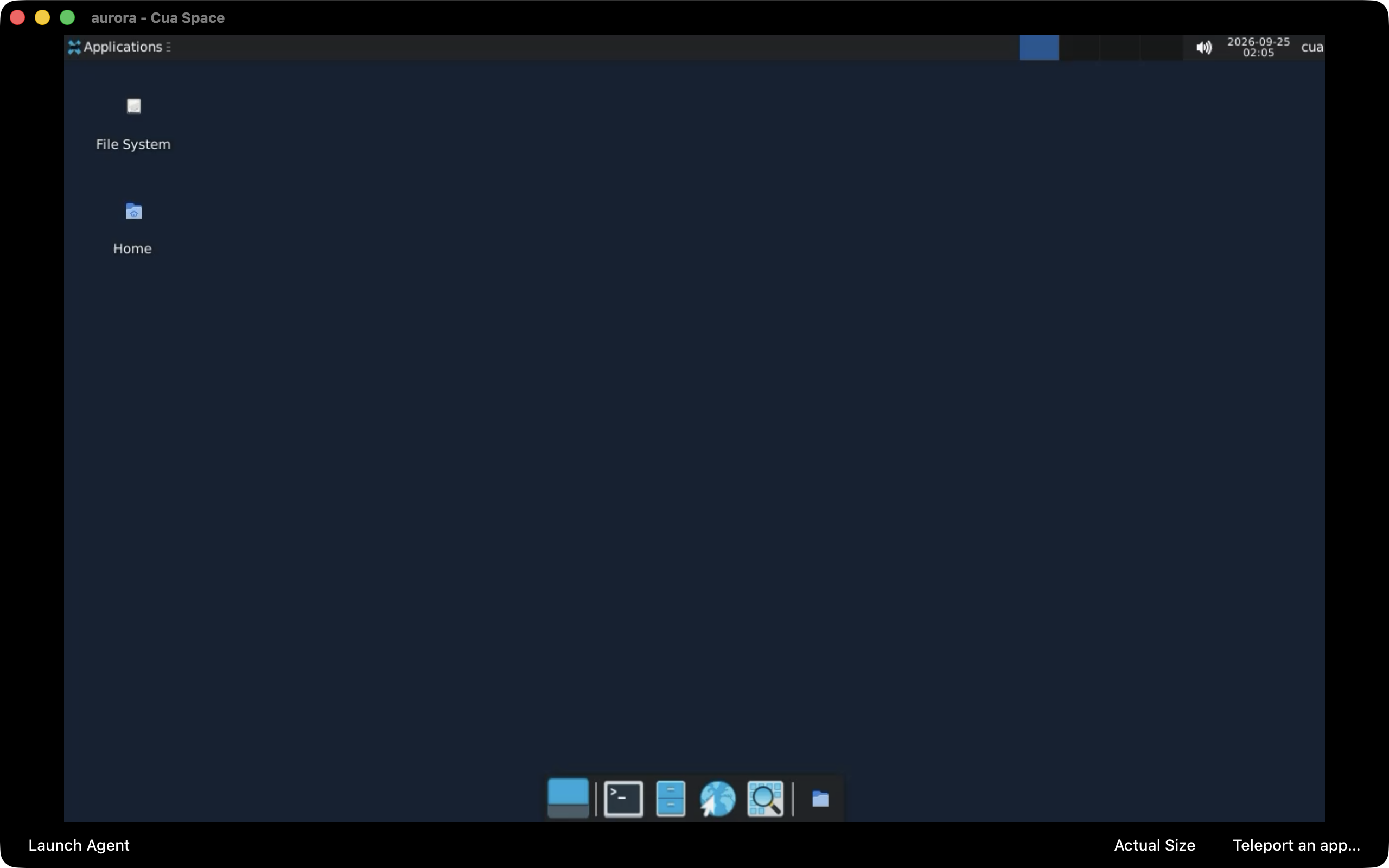
Cua's documentation screenshot shows a Linux desktop inside its Spaces viewer. It illustrates the visible work computer, not a Hermes task executed for this article. Source: Cua AI, Inc., pinned documentation asset, used under the MIT license.

The terminal boundary and the desktop boundary are different
The official plugin documentation lists terminal, file and code support for Linux, macOS and Windows Spaces. Its more specific desktop table limits Bot Desktop, computer_use and browser routing to supported Linux Spaces. That qualification matters more than a broad claim that an agent runs “in a sandbox.”
For the Linux desktop path, the documentation requires a Hermes version containing the relevant change after 0.22.2, Cua CLI 0.7.0 or newer, and a desktop stack in the Space. It also identifies configurations that keep desktop tools on the host. Check the complete setup before assuming every tool shares one boundary.
| Target environment | Terminal, file and code work | Desktop and browser work through this plugin |
|---|---|---|
| Supported Linux Space with desktop dependencies | Runs in the Space | Can follow the terminal into the Space |
| Linux Space without the required desktop setup | Terminal backend can still be usable | Do not assume the desktop path is ready |
| macOS Space | Runs in the Space | The documented plugin path keeps these tools on the host |
| Windows Space | Runs in the Space, with platform prerequisites | The documented plugin path keeps these tools on the host |
Capability comparison: official Hermes plugin documentation, checked October 27, 2026. This describes this integration path, not every possible Cua deployment.
This is easy to miss in an otherwise successful setup. A command can report the Space's hostname while a later graphical action reaches a different machine. Verifying the terminal proves the terminal target; it does not prove where the next tool will operate.
Use a harmless, recognizable check for each tool family you plan to allow. For a browser task, inspect the visible target browser before supplying a live account. For file work, use a sample file whose location is unambiguous. A few small checks make a mixed environment easier to understand than a large task that fails halfway through.
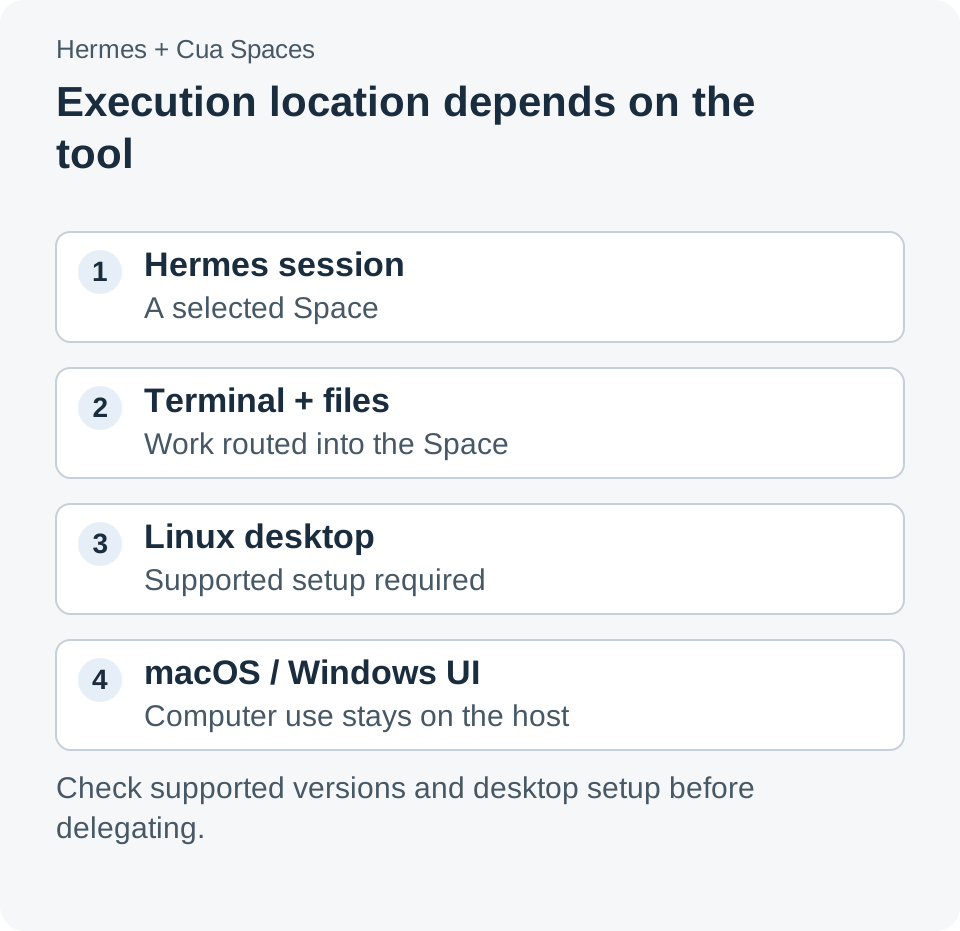
Original integration diagram based on the plugin's documented tool boundaries. It distinguishes the agent process, terminal backend and conditional desktop path.
Temporary and persistent Spaces create different responsibilities
The plugin can create a Space for a run or connect to one the user names. That is more than a convenience setting. It changes which files survive, who is responsible for cleanup and which command-confirmation behavior the documentation describes.
For plugin-created Spaces, the documented default is deletion when Hermes exits. The plugin skips Hermes's risky-command prompts for those environments because it treats the Space as the sandbox. For an existing named Space, the documentation says prompts remain and that the plugin does not stop or delete it.
That behavior gives a team a clear choice. A temporary environment fits a disposable test with synthetic data and a result that will be exported before exit. A persistent environment fits a longer task whose state must survive between sessions, provided someone owns its cleanup and ongoing resource use.
A persistent workbench can also accumulate forgotten context. A browser session, generated file or old dependency can affect a later task even though it was not mentioned in the new request. If reproducibility matters, record what the environment contains and decide whether each new job starts from a clean image or a deliberately maintained state.
This is an operating decision, not an automatic security guarantee. A temporary machine can still access external services if you give it credentials. A named machine can still contain sensitive files. Choose the environment and its permissions together, with the actual task in mind.
Set up one Linux test task before inviting the team
The following procedure follows the plugin's documented integration path and adds suggested verification steps. It has not been executed for this article. Start with a disposable test environment and a task that uses sample files rather than live business data.
-
Prepare compatible installations. Follow the official Cua and Hermes installation guides, then check the plugin's current prerequisites. Use a supported Hermes revision and Cua CLI 0.7.0 or newer when testing Linux desktop routing.
-
Install and enable the plugin. The documented command below installs the integration. Review the requested Python dependency and enablement prompts before continuing.
ShellRun in Terminalhermes plugins install https://github.com/trycua/hermes-cua-spaces -
Select the terminal backend. Point Hermes at Cua, then choose whether the exercise should create a disposable Space or use a named one.
ShellRun in Terminalhermes config set terminal.backend cua -
Prepare the Linux desktop path if needed. The plugin can install its documented desktop dependencies in the Space. This step needs the permissions and network access described in the official guide.
ShellRun in Terminalhermes config set plugins.entries.cua-spaces.settings.desktop true -
Verify the target before doing work. Ask for the hostname and operating-system information, then inspect the Space in the viewer. Check the desktop or browser path separately if the task will use it.
-
Run a small, reversible task. For example, have the agent create a sample text file, read it back and open a local test page. Define the expected result in advance and inspect the actual artifact.
-
Test the end of the session. Export anything you intend to keep and confirm the chosen lifecycle behavior. A successful task is incomplete if its only output disappears with a temporary Space.
Keep the initial job short enough that a reviewer can follow the whole sequence. A useful first result is not a sophisticated demo; it is confidence about which machine received each action and where the resulting files now live. Once that is clear, the team can add a more realistic workflow.
A shared computer helps with testing, handoffs and demonstrations
Three illustrative uses show where this arrangement can help. They are proposed workflows, not measured outcomes or customer deployments. Each needs an explicit result and a person who can judge it.
An internal-tool smoke test can use a Linux Space with a sample application and synthetic records. The agent walks through a defined path while a teammate observes. The useful evidence is the application's visible behavior and the saved test output, not the agent's statement that it finished.
A development handoff can preserve a working environment while another person reviews a bug reproduction. The reviewer can inspect the same files and application state, ask for a narrower reproduction and then continue the work. Persistence helps only if the team knows which state is intentional and which should be reset.
A browser-workflow demonstration can show a proposed process with a test account. A teammate can intervene at an ambiguous screen and explain the intended choice. Before using a real account, the team should verify the tool boundary and define which actions are permitted in that account.
In all three cases, observation and control should have clear ownership. Two participants changing the same screen at once can make a result difficult to explain. A team can agree on a simple handoff convention: pause the task, let the reviewer make the decision, then restate the next step before continuing.
Price the computer, the connection and the model separately
Cua's pricing page, checked October 27, 2026, says users bring their own computers or cloud machines. The service provides the app, sharing and relay capabilities; the hardware or cloud bill remains separate. Model usage is another part of the agent workflow and should be budgeted on its own terms.
The listed Free allowance is 2 live sessions and 20 remote hours per month. Pro is $18 per month, or $180 billed annually. Teams is $30 per seat per month, or $300 per seat billed annually; the annual equivalents are $15 and $25 per month respectively.
These numbers describe the published plans at the source-check date. They do not price a completed agent task. A team should also account for how long its machines remain running, how much model usage a retry consumes and how much review the workflow requires.
The pricing page marks several capabilities as future additions, including expiring share links, audit history, SSO and audit export. Treat those labels literally when planning a workflow. A feature listed as coming later should not become a present-day dependency in a rollout plan.
For an illustrative comparison, estimate a month of the actual workflow rather than comparing subscription prices alone. Write down expected sessions, remote time, machine uptime and review time. The exercise may show that a persistent machine is convenient but unnecessarily left running between brief tasks.
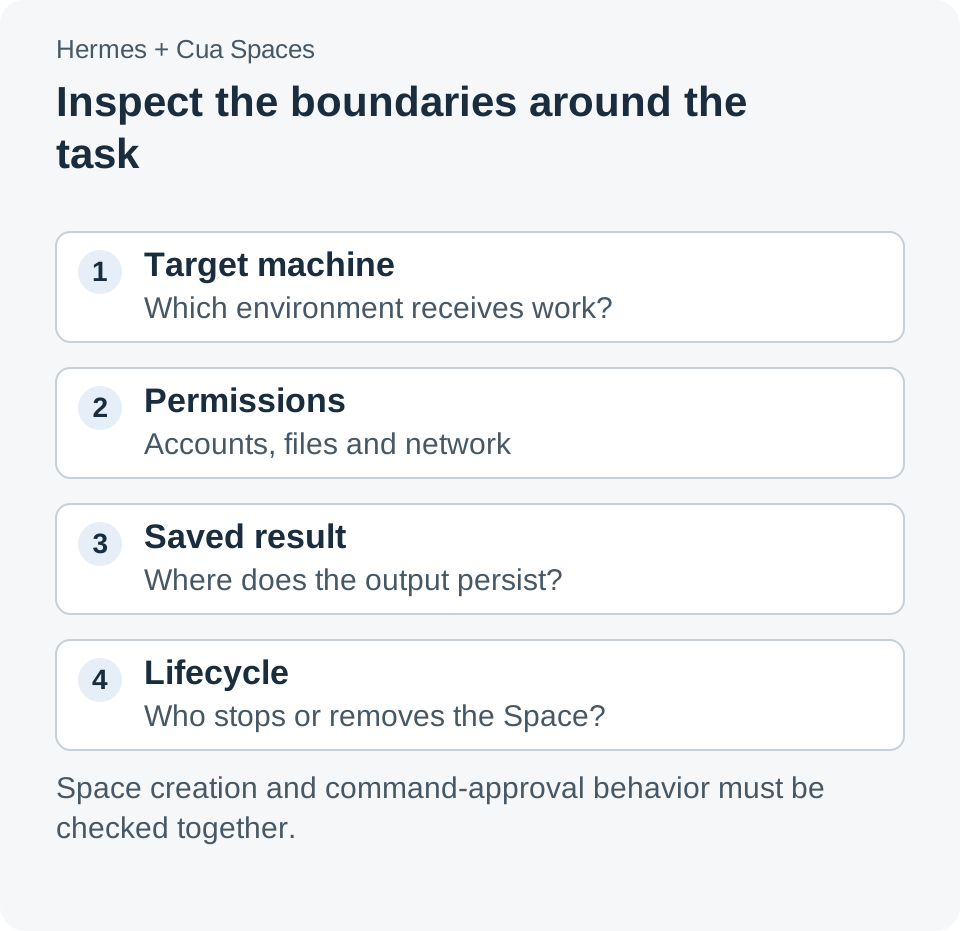
Original operational review guide. The four checks are suggested acceptance criteria, not a certification of the plugin or a measured safety result.
Measure whether another person can understand the result
The most revealing evaluation is often a handoff. Ask someone who did not write the original prompt to inspect the environment and explain what changed. If they need the operator to reconstruct every step from memory, the workflow still has an observability problem.
For a small pilot, use a checklist with four concrete outcomes: the intended machine received the work, the result matches the task, the output is available outside any disposable environment, and the remaining machine state is understood. These are suggested criteria. They are more useful than a single impression that the agent looked productive.
Keep failure examples as carefully as successful ones. A task that opened the wrong browser teaches you something different from a task that reached the correct browser and chose the wrong record. The first concerns routing and setup; the second concerns task interpretation or review.
The official Cua guide for Hermes also documents Driver and MCP-based integration options. Those are separate paths with their own behavior. Choose one deliberately and describe it in the team's setup notes instead of combining instructions from several approaches into an unexplained configuration.
The useful boundary is one the team can point to
Giving an agent a computer becomes practical when people can identify the target, inspect the work and recover the result. Hermes with Cua Spaces offers a concrete integration for doing that, with platform and lifecycle details that deserve attention before real tasks begin.
The question to carry into a trial is simple: can a teammate point to the computer being used and explain what the agent is allowed to do there? A clear answer turns a visible desktop into a useful working environment. It also makes the next failure easier to diagnose and the next handoff easier to trust.
Sources
- Hermes plugin catalog: Cua Spaces — added October 20 and updated October 21, 2026; platform routing, configuration and lifecycle behavior.
- Cua: Hermes integration guide — checked October 27, 2026; alternate Driver and MCP setup paths.
- Cua Spaces pricing — checked October 27, 2026; plans, allowances, bring-your-own-computer model and future-feature labels.
- Official Spaces viewer screenshot and its pinned MIT license — Cua AI, Inc. documentation asset.
Source check: October 27, 2026. Setup commands are documented examples, and workflows are illustrative. No installation, isolation audit or task-cost benchmark was performed for this article.
A recommendation from Telli.sh
Want a searchable place for setup notes, test recordings and the decisions behind an agent workflow? Collect your reference material in Telli.sh and keep the handoff understandable.