An Outlook email can start a Glean agent. Which messages should get one?
Glean's November 19 update starts Outlook email agents from live notifications. A support-inbox pilot shows where faster triage helps and how to test routing, access and draft review.
A support mailbox receives a customer escalation at 9:02. By 9:07 somebody has forwarded the same thread twice, and the person on call has only seen the last reply. An assistant that can extract the customer, affected service and requested action would give that person a better starting point. It helps most when the draft is ready before the team has already done the work.
Glean, an enterprise search and AI agent platform that connects to company tools, changed how its Outlook email agents start in its November 19, 2026 release. A webhook notification can start an agent on a new message or thread instead of waiting for the next scheduled check. Glean says new Outlook email agents use the real-time trigger by default and eligible existing agents switch automatically. This changes how the work begins. The team still has to decide what messages qualify, what a run should produce and who can act on the result. Glean November 19 release notes
What moving from polling to notifications changes
In a polling workflow, prospects for a faster answer depend partly on when the next mailbox check happens. A message that arrives immediately after a check can wait through most of the interval. A notification-driven workflow can start the run when a qualifying delivery is reported. It is useful for narrow, time-sensitive work such as a verified customer escalation or a request for the person on call.
The timestamps worth tracking are different. A notification can arrive promptly while an agent still needs time to retrieve references, reason about the message and create a draft. An employee might also be busy when the result is ready. Track message delivery, agent start, reviewable output and owner action as four separate times. That tells you whether a real-time trigger reduced triage time or mainly increased the number of alerts waiting on the same person.
Glean's content trigger reference distinguishes Outlook email from other connectors and lists a New email event with filters such as subject, sender, sender domain, recipient, importance, folder and category. The November release specifically describes Outlook email. Glean's general latency guidance still varies by source, connector and event type. A timing result in one connected mailbox should be measured before budgeting a response window for another workflow. Glean content triggers · Outlook email release details
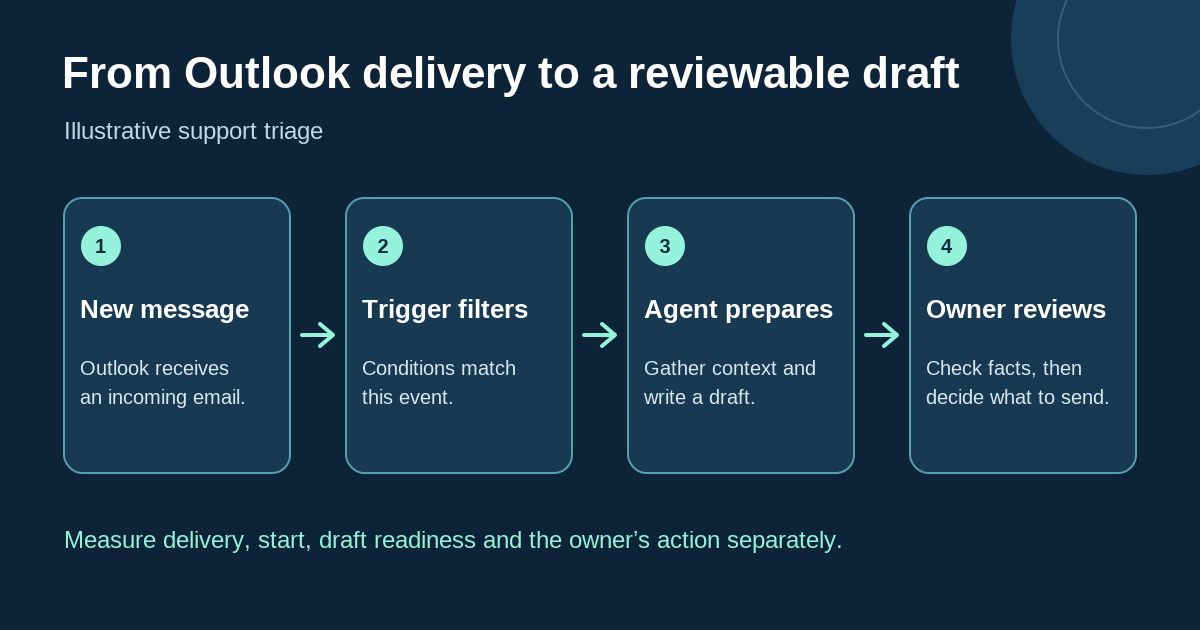
An illustrative workflow for a monitored inbox. The trigger, draft and customer reply are separate steps.
Start with inquiries that already have an owner
Consider a support team that has a documented process for urgent requests from a known account. Use a mailbox or folder the designated agent user can actually access, then agree which incoming messages belong in the trial. A recipient and sender-domain rule can keep the work focused on one queue and one set of partners. Message importance can be useful when a sender and support team have agreed how to use it. Its presence alone says little about the customer's actual situation.
A useful first output is a short internal brief with the sender, the product or service mentioned, the action requested, relevant links the reviewer can open and a list of facts to verify. Ask the agent to identify missing details the operator needs. For a response draft, a person should confirm which service is affected, who should receive the reply and whether there is enough evidence to give a timeline.
The distinction matters when messages in the same thread ask for different things. An incoming note about a delayed export may require a basic status check. A follow-up supplying a new ticket number might make it possible to determine which job actually failed. Send both through the trial and check whether the second draft incorporates the new fact. If a message only repeats the existing request, a second notification may be more distracting than useful.
An operations team could use a similar approach for bookings and schedule changes from a trusted supplier. The first output can capture the changed time, affected work and open questions. Staff can compare that with the current schedule and decide whether to make a change. The workflow has less value when every ordinary update takes the same immediate path as a problem someone must address.
Filters cannot decide who gets to see a result
Glean's Outlook connector documentation describes read-only email indexing and live retrieval, with access checked against the user's Outlook permissions. Glean's content trigger documentation says an agent runs in the context of the person who activated it, and each activation creates a personal trigger. Admins can control access to content triggers, and creating or activating a workflow requires the appropriate permissions. This matters when several employees can reach overlapping mail. Testing with two authorized users can show whether they receive separate runs for the same incoming item. Outlook connector access model · Content triggers and access controls
The people who can open a message and the people who can read a summary may differ. An assigned support lead might be able to read an attachment with customer data while the wider incident channel only needs the ticket number. Check that the planned destination matches the information it will contain, including quoted replies and links. An incoming email can make an unverified claim or ask for a change. Put it in the brief as a request to review and verify consequential instructions with a trusted company record before acting.
The read-only Outlook connector and action tools have different jobs. Glean's Microsoft 365 tools documentation describes using a separately configured Outlook tool to create a draft ready for review and sending. Tool availability can vary by deployment. A trial can create a draft for the responsible person or produce an internal summary without a send step. The ability to read an email or prepare a draft gives no operational reason to let the workflow send a response on its own. Glean's Microsoft 365 tool packs
Choose what deserves a run and what deserves an interruption
| Incoming event | Useful initial output | What the reviewer checks |
|---|---|---|
| A qualifying escalation to the test mailbox | A brief with the issue, next owner and links | The queue is correct and the escalation is actionable |
| A reply with new facts in the same thread | An updated draft or a new detail for the owner | The latest material change is represented without duplicating old work |
| A repeat forward or an unchanged status update | A record of whether the workflow ran | Repeated messages do not create competing work for different people |
| An email the operator may read but the wider team should not see | A restricted result or no shared output | Sensitive text and attachments stay within the approved audience |
The table describes trial expectations. In Glean's model, the New email trigger evaluates its conditions when the event happens. The documentation says a New event does not rerun simply because the item is later updated to meet a condition. If your process moves a message to an escalation folder after delivery or depends on someone assigning a category, test when that field becomes visible and whether the initial event already qualifies. A correctly configured filter applied at the wrong point in the workflow can still miss a message the team needs. Glean's new-event condition rules
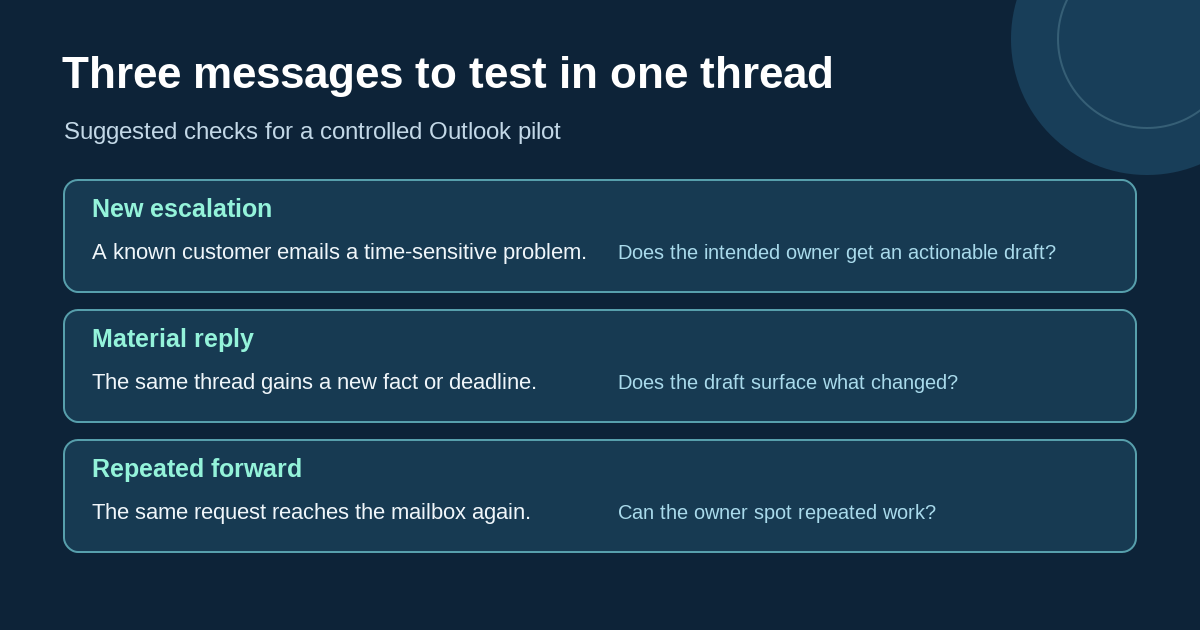
An illustrative set of inputs for checking coverage and duplicate work before turning on a live queue.
Build a pilot the team can pause and measure
- Confirm access and pick the queue. Check that Outlook is connected, the designated user can open the intended mail and the administrator has enabled content triggers for the relevant group. Confirm the mailbox type and tool actions offered in the tenant before promising coverage.
- Set the trigger in Agent builder. Start a workflow, choose Content as the trigger type and select the Outlook New email event. Apply conditions such as a test recipient and approved sender or folder. Glean's guide shows where to configure the event, eligible fields and conditions.
- Prepare an output a person can verify. Pass the source message into the workflow and ask for a short brief or draft with the open questions clearly marked. Add the Outlook draft action only where the approved tool and permissions are available. Have the owner inspect the recipient, attachments and facts before anything goes to a customer.
- Replay representative examples. Use approved test messages for an escalation, an ordinary update, a repeated forward and a reply that changes a material detail. Add a case whose category changes after delivery. Record which events started a run and which outcomes would require human correction.
- Review the Active agents page. Glean documents a run history and controls to pause or resume a content-triggered agent. Agree on who checks it after a permissions change, who pauses a noisy trigger, and what the team will do when the workflow is temporarily unavailable.
Glean lets a builder prepare changes in a draft while a published workflow stays live. Publishing may require approval depending on the sharing scope. Its version-history documentation distinguishes changes to the core workflow from changes to permissions and sharing. Keep the tested version, activation owner and actual mailbox access in the same operational record so another person can reproduce the setup after a handoff. Setting up and managing content triggers · Agent drafts and version history
A useful measurement period includes routine mail as well as genuinely urgent messages. Count eligible cases the workflow caught and missed, how many outputs an owner rejected, and how often two people began the same work. Compare time to a reviewable draft with the team's existing triage. For a flow with real urgency, look at the slower cases as well as the typical one. A fast draft that routinely includes the wrong owner or repeats known information shifts work to reviewers.
The rollout note describes the delivery change. It gives no fixed latency target for every mailbox configuration. One team's test may find the time savings come from qualifying a narrow request quickly. Another may discover that access, missing information or the review queue accounts for most of the delay. The result that matters is whether an authorized person can take the next useful action earlier, with enough context to do it correctly. Glean November release notes
Keep your triage examples, approved replies and rollout observations in one place. Start your first note with Telli.sh.