What’s left of 128 GB when an AI model and your video editor run together?
GIGABYTE’s AI TOP AERO brings up to 128 GB of unified memory to a small Windows desktop. Here’s how to test a local captioning model alongside a real editing timeline.
You have a 20-minute interview on the timeline, and you want a rough transcript before you cut the next scene. You can wait for the captions, or you can start the transcription model and carry on editing. The second option is the reason to pay attention to GIGABYTE’s AI TOP AERO. It asks the hardware to do the kind of overlapping work that a model running on an empty desktop never has to handle.
GIGABYTE lists November 10, 2026, as the desktop’s launch date in its global announcement, which is dated November 11. The compact Windows 11 machine uses NVIDIA’s RTX Spark N1X with a 20-core Grace CPU and a Blackwell RTX GPU. GIGABYTE lists up to 128 GB of LPDDR5x unified system memory and up to 4 TB of PCIe Gen 5 SSD storage. It directs buyers to regional announcements for configurations, prices and availability. GIGABYTE’s launch notice and official product image.
If you’re evaluating a machine for captioning, rough cuts or local analysis of footage, take one project and measure it twice. Run the same model with the editor open and idle, then repeat while you actually use the timeline. Watch how much memory remains available, how quickly the captions arrive and whether playback stays responsive. That comparison tells you what the 128 GB specification buys for a working editor.
The 128 GB figure describes installed memory
A desktop with a discrete graphics card normally has system memory and a separate supply of memory on the graphics card. On RTX Spark, the CPU and integrated GPU share physical memory. NVIDIA’s September 10 Windows on Arm porting guide describes three logical regions within that memory. Windows reports a dedicated GPU region backed by system DRAM, manages a shared region both processors can access and keeps a CPU-only region outside GPU allocation. NVIDIA’s unified memory architecture guide.
Those regions matter when a model advertises its memory requirements and an editing application reports a GPU limit. The processors share the underlying memory chips, while the runtime and the operating system still determine which resources can go where. The two applications may also hold their own copies of data or keep scratch buffers alive. Use the installed capacity to shortlist a machine and the applications’ own reported limits and behavior to size the workload.
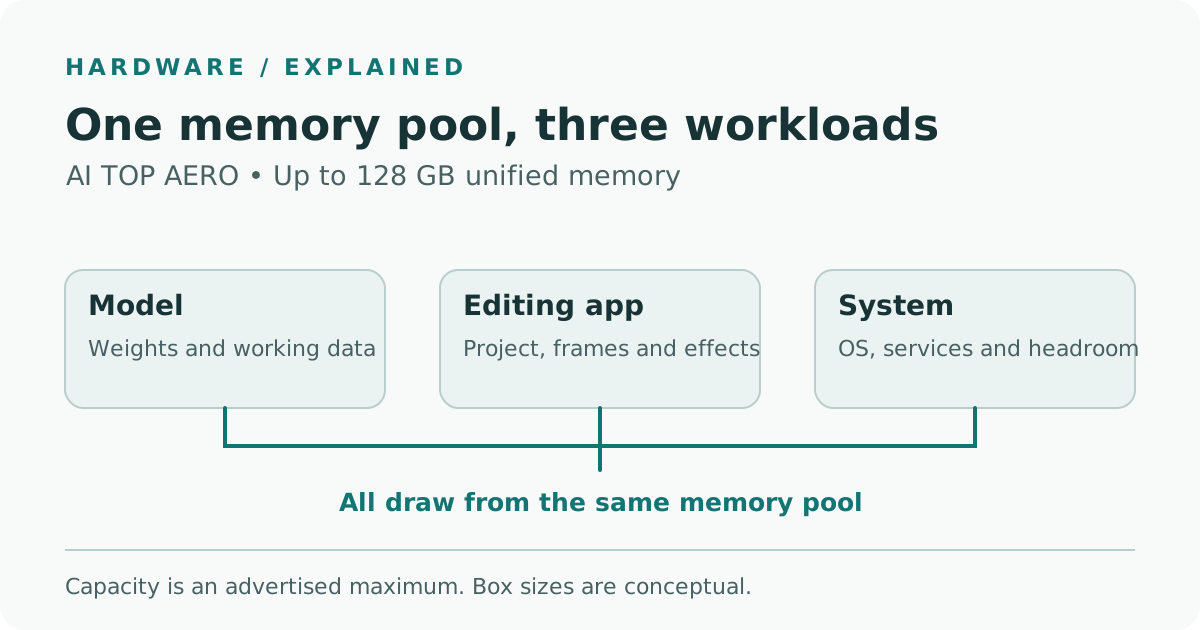
The budget groups the memory demands you would observe during an editing session. Its blocks are conceptual, with no measured shares or firmware partition sizes.
There are three numbers worth writing down. The first is the installed memory on the exact configuration you can buy. The second is the available physical memory reported by Windows at the busiest point in your work. The third is the useful memory capacity or budget reported by the application or GPU backend, where it exposes one. The first number is fixed for the test, and the other two can change as the timeline, model or other open apps take on work.
| What you measure | What it helps answer | What to check alongside it |
|---|---|---|
| Installed capacity on the exact unit | Which configuration is under consideration? | Seller’s SKU and regional specification |
| Lowest available system memory during the run | How much physical headroom did the session retain? | Disk activity and responsiveness at the same moment |
| GPU budget and usage where the application reports them | Is the chosen graphics or AI path hitting its working limit? | Model offload or fallback messages and timeline behavior |
| End-to-end time and playback interruptions | Can the editor use the workstation while captions arrive? | Transcript quality and repeatability over several runs |
Windows offers graphics applications a video memory budget that can vary as other applications join the session. In its DXGI documentation, Microsoft describes how applications may incur stuttering or performance penalties when usage exceeds that budget. Your model may expose a different view through its compute backend, so record what each figure measures. Adding a system memory total to a GPU memory total in a spreadsheet can count some of the same physical memory twice. Microsoft’s DXGI memory budget documentation.
The model file accounts for one part of the workload
When you download a model, the file size gives you a starting point. The running application can also need buffers for its inputs and intermediate work, and the required memory depends on how the runtime loads the weights, what precision it uses internally and how much work it batches together. If you increase the number of audio clips processed at once, measure the resulting peak as well as the time it saves. A configuration that works for one short clip may respond differently when several jobs overlap.
The editor’s demands move too. Opening a project may fill media caches and allocate graphics resources even while playback is paused. Scrubbing, previewing effects and exporting can change CPU, GPU and disk activity at different moments. Holding the exact project and preview settings fixed lets you measure the added work from an action you can repeat. It also lets you distinguish the cost of simply keeping the editor open from the cost of asking it to do something.
For an interview, use the local model to create timed captions, then bring the output into the editor in a format it supports, for example SRT. Start by checking a busy minute with overlapping voices and names. You want the transcript to reach the right part of the timeline and leave the editor fewer corrections. A fast draft loses its value if you spend the time you saved moving captions or repairing names.
For a second workflow, make a collection of reviewed stills from a project and use a compatible local vision model to propose shot tags. This gives you a way to find cutaways across several clips without uploading those stills to a remote inference service, if your apps are configured to keep them on the machine. Verify the tags against the actual footage. A batch of stills is also a way to test how changing resolution or the number of items per batch affects memory and elapsed time. Compare the outputs before deciding whether to trade image detail for capacity.
Check the exact Windows on Arm workflow you depend on
Make a list of the editor version, the plug-ins you need on paid work, the capture or audio interface driver, and the app or runtime that will run the model. Check the vendors’ documentation for those specific versions and the GPU backend. Open an existing project with a real effect, and confirm that the editor can play the timeline, render the effect and export with the codec you deliver. At the same time, verify that the AI runtime can load the model and reports the acceleration path you expected.
Microsoft documents emulation for x86 and x64 user applications on Windows 11 on Arm. Its developer guidance requires native Arm64 binaries for kernel drivers, and it calls out third-party plug-ins and dependencies as compatibility checks. An editor that opens a project may still encounter a problem when it loads a plug-in or speaks to a device. Keep that check separate from your memory observations so you can identify why the workflow failed. Microsoft’s Windows on Arm emulation guide and Arm application compatibility guidance.
It also helps to check where data goes. Running transcription on the desktop gives you control over the path from source audio to local subtitle file. The editor or the transcription app may also have optional cloud processing, monitoring or sync settings. On a project with confidential footage, confirm those settings and test the accepted workflow with non-sensitive media before you rely on it for client work. Keep the output and intermediate files in the storage locations you intend to use on a real assignment.
Time the same model with the timeline idle and active
Pick a representative clip and a repeatable editing action. For the illustrative 20-minute interview, start both runs from the same position in the same timeline and keep the model file, precision, backend, source audio, output format and preview settings fixed. If you know the workload changes significantly when the project gets longer, add that as its own test after you have the baseline.
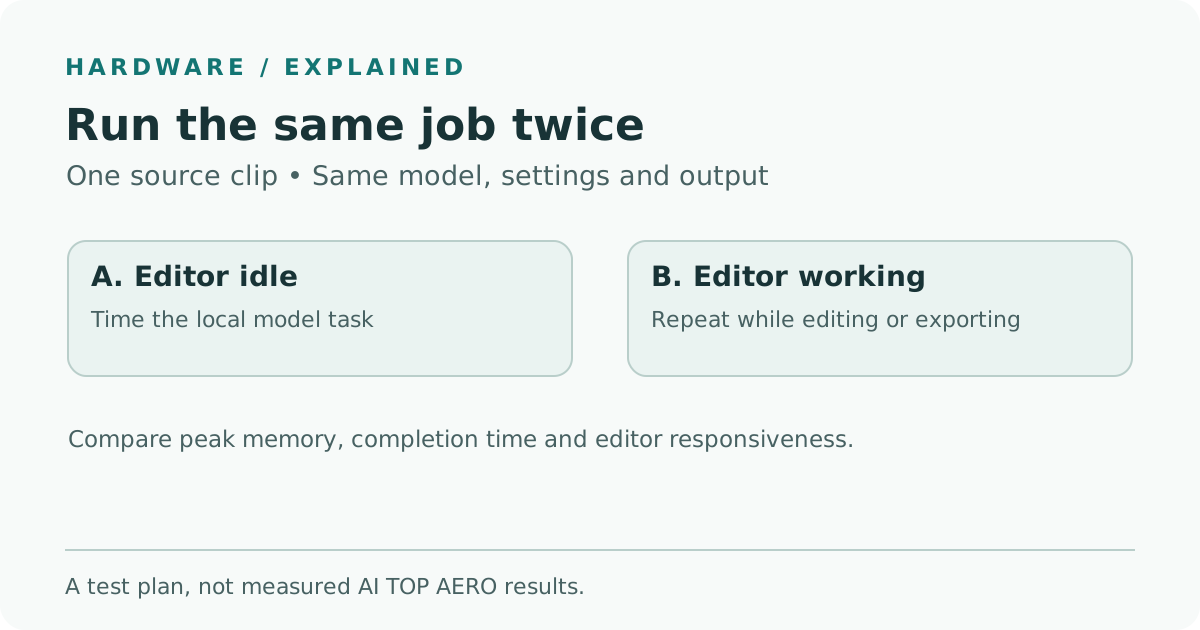
The two passes hold the model and clip constant. Compare available memory, time to captions and timeline responsiveness across idle and active editing.
- Record the starting configuration. Note the installed capacity, operating system, GPU driver, editor version, model build and the acceleration path. Keep the same power settings, same storage path and same project settings throughout. Write down any applications you normally leave running.
- Take an editor-only reference. With the model stopped, perform a fixed editing action, such as playing a marked one-minute segment with effects enabled at your usual preview setting. Record interruptions or use the editor’s dropped-frame counter if it has one. The reference shows how playback behaves before you add transcription.
- Run the model with the editor idle. Leave the editor open with the project loaded and the playhead stopped. Start the caption job. Log the available memory at the start and the lowest reading during processing. Record time to a completed subtitle file and any runtime messages about fallback or allocation. Treat the first run after loading separately if you want to know how much time startup contributes.
- Repeat with active editing. Start the same caption job and perform the same playback sequence from the editor-only reference. Record both sets of signals during the same interval. Check the subtitle draft against the same part of the interview after each run. Repeat each condition two or three times so a single background task does not drive your comparison.
- Check sustained behavior if the job runs for long periods. Keep your intended workload running for a session long enough to include several jobs or a representative work block. Record whether completion times, playback, fan noise or reported temperatures change as the machine warms up. The launch materials describe GIGABYTE’s cooling design, and this check establishes what the specific unit does in your workspace. GIGABYTE’s launch notice.
The comparison works best when you set a threshold in advance. An assistant editor might need captions before a first review while keeping playback smooth enough to make cuts. A team processing footage overnight might care about the total files delivered and have little reason to keep an editor active. Use the threshold that matches the job. The same desktop can be a good fit for one of those schedules and a poor fit for the other.
Capacity and throughput can fail at different points
If available memory stays comfortable and the caption job slows down only while the timeline is playing, inspect whether the editor and the model are both keeping the GPU busy. Check CPU and disk activity during the same period. Those observations give you places to look, while a repeat with one changed setting can show whether the behavior follows timeline effects, background reads or model concurrency.
If available memory gets low, check the runtime logs and whether the system is spending time paging or rereading data. Try a smaller batch and repeat the same clip. For a caption job, lowering model precision or changing models also calls for a quality comparison on the same lines of dialogue. If both apps are responsive after one of those changes, you have a setting that meets the job and a record of the trade you made.
If the model works and playback still feels wrong, try keeping inference paused during real-time review and letting it run while you do work that needs less GPU time. That uses the same machine and preserves local handling. Where you regularly need a long export and several AI jobs at the same time, run those as their own test. If they consistently compete for resources, the results help you decide whether to change the schedule or separate workloads across machines.
Buy for the edit session you want to keep open
GIGABYTE’s compact desktop makes a strong case for evaluating local AI and content creation as one workload. You have up to 128 GB of installed memory on the highest configuration, an Arm-based Windows environment and a GPU the two apps can use. The buying question is how much editing you can get done while captions or tags are being produced. Ask for the local SKU, take your own clip and required plug-ins to a hands-on session if one is available, and compare the same-minute results with the machine you already use.
The spec is useful when it leads to a reproducible session. A model that finishes within your deadline, a timeline that remains responsive and a clean subtitle import together tell you what the desktop will do for you every time the next interview lands.
Sources
- GIGABYTE global launch notice, November 11, 2026, with November 10 launch date, machine specifications and official product image
- NVIDIA Windows on Arm porting guide, unified memory architecture, updated September 10, 2026
- Microsoft’s video memory budget reference for graphics applications
- Microsoft’s Windows on Arm emulation guide
- Microsoft’s Arm application and driver compatibility guidance
To keep edited transcripts and project notes together, create a Telli.sh account.