Can Adobe Firefly Graph turn one product photo into a whole catalog set?
Adobe’s Firefly Graph beta makes creative workflows reusable. A product shoot shows where connected steps save time and where a human still needs to check the result.
A store launches a bottle in three colors and needs a square listing image, a vertical social asset, and a wide banner for each color. That is nine deliverables from one shoot. The difficult part comes after the first good result. Every image has to show the correct bottle, and the storefront needs to change a crop or background without sending the team back through all nine edits.
Adobe, the company behind Photoshop and Illustrator, announced Firefly Graph as a public beta at Adobe MAX on November 10, 2026. It connects assets, Creative Cloud capabilities and generative models in a visual sequence you can save, adjust and share. Adobe shows the intermediate results as the graph runs, which gives a producer a way to inspect a step before relying on it for the rest of the batch. Adobe MAX announcement · Firefly Graph product guide
The catalog example is a useful test because it gives the beta a measurable job. Start with one approved source, build a few variations, then change the inputs and see which parts of the result stay predictable. The launch demo is a good place to see the interface and how a team can work with a saved graph. Adobe’s official Firefly Graph demo
A saved graph gives every variation the same starting point
Firefly Graph represents a step as a node. A node can supply an input, use an Adobe tool, or call a generative model. Connections pass results downstream, so one input can reach more than one step. Adobe's November 10 release describes the graphs as repeatable and shareable, and the product guide shows how to edit or replace an individual node and inspect its output. Adobe MAX announcement · Adobe Graph product guide
Imagine that the team has already approved the photo, a background treatment and the crop rules. The photo can enter once. A shared stage handles preparation, such as isolating the subject or standardizing its placement. One branch can then make a square composition for the store, another can reserve space in a vertical asset for a caption, and another can make a wider layout with room for a headline. A color change begins by choosing another approved source photo.
This is a design for a test graph. Whether a particular operation belongs in the graph depends on the nodes available to the team and the output format the storefront accepts. A marketplace might need an exact background, while a social campaign leaves room for some variation. Keep those decisions visible in each branch. If the person who inherits the graph cannot find the branch that changed the dimensions, the saved workflow will be harder to maintain than its first run suggests.
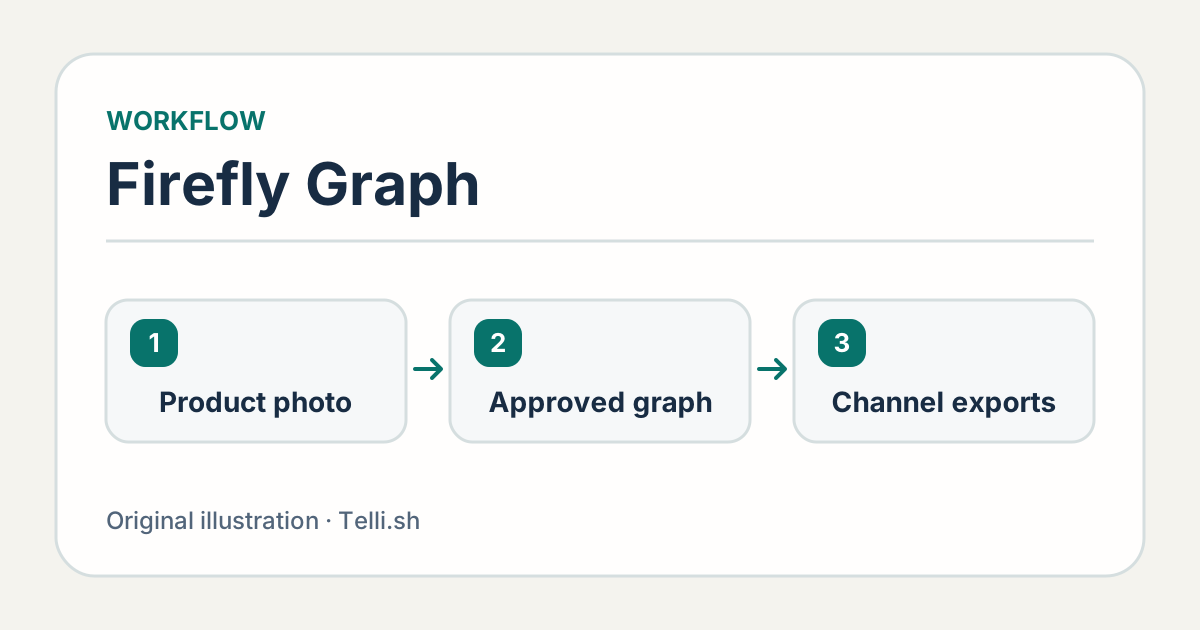
A sample catalog workflow. One approved source supports three formats and each export gets a separate check. Illustration by Telli.sh.
You can use the same idea for a different job, such as comparing two background styles for one campaign. Feed the same asset to both branches, compare the resulting images, and approve one version for the next shoot. That gives creative direction a concrete reference. A teammate can tell which input and which stage produced the result instead of trying to reconstruct the winning image from a prompt in a chat.
Keep the product photo in charge of what the customer sees
An image can look polished and still be wrong. A generated backdrop may add a reflection that makes a matte container look glossy, or blur a small logo along its edge. A layout that looked fine on a black bottle may cut off the cap on a taller bottle. These are examples of errors to look for, and the cause matters. A clipped cap calls for a different change from a generated label that has drifted from the original.
Give the workflow an explicit division of responsibility. Let the source photograph establish the product's proportions, finish and printed details. Use generated variations for scenes the buyer will understand as styling. Compare with the approved source before export, especially where the product meets a shadow or reflection. If your graph regenerates the whole image, expand that check to every detail buyers use to identify the item.
A useful first pass compares three kinds of input. Use one product with a simple outline, one that is reflective or transparent, and one that carries text close to the edge. This tests three common reasons a workflow may need an exception. The three inputs and nine deliverables are a suggested pilot size. Adobe has not reported the error rate for this set.
| Deliverable | Keep fixed | Check at review |
|---|---|---|
| Square store listing | Approved product photo and listing requirements | Entire item is visible and the color and packaging match the source |
| Vertical campaign asset | Product identity and layout allowance for text | The crop survives the platform preview and text stays readable |
| Wide banner | Approved subject and safe margin for the headline | Subject stays clear at narrow desktop and mobile widths |
For a product team, accuracy also involves keeping variants apart. Put a stable product ID and color in both the source name and the exported filename. A wrong color in a listing can otherwise survive several rounds of visual review because the image itself looks entirely plausible. When preparing campaign material for different markets, keep legal copy and region-specific labels with the appropriate branch or add them during the final layout step.
The credit bill depends on which nodes you rerun
Firefly Graph can run steps that use generative models alongside other operations. Adobe's product guide says the generative nodes require credits, their costs vary by node and model, and the cost is shown before generation. That makes the sequence part of the budget. In a branching workflow, repeatedly regenerating a shared source may cost more than refining a crop or a layout around an approved intermediate. Adobe Graph product guide
Start by finding the smallest change that solves the problem. If a banner has the wrong amount of room for a headline, adjust composition first. If one background treats a transparent product poorly, compare one repaired version and one photo-led version while leaving the other formats untouched. Keep the results that pass, together with the approved input and model settings. The next test can then address what changed.
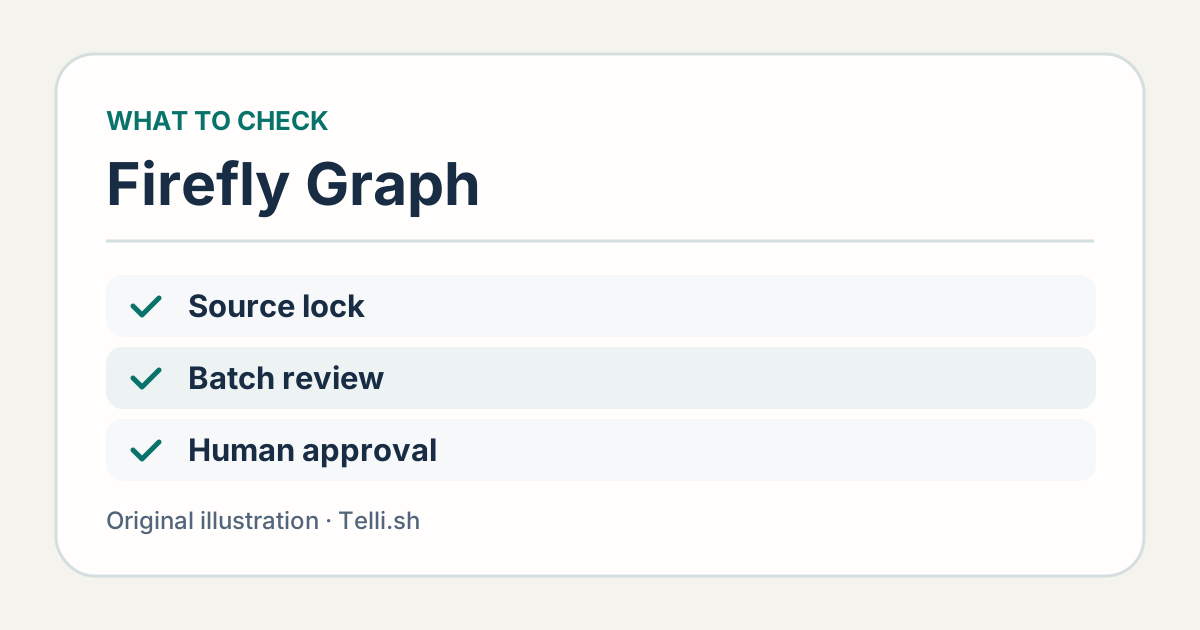
Record which steps spend credits and which review checks determine whether a result is usable. Illustration by Telli.sh.
Count human review as part of the same calculation. Suppose the first attempt produces nine files and two need a second pass. Log the elapsed time for setup and review, the credits shown before generation, and the number of approved exports. A creative lead can then compare the workflow with the current method using cost and time per approved asset. A faster first preview can be valuable, but it is a different measure from time to deliver.
Teams should also check their own model and data rules. Adobe's guide describes support for several providers. A graph that presents models side by side makes comparison convenient, while the team still has to determine which input materials it is allowed to submit to which service. Use a product photo already cleared for the pilot, and keep unreleased collections, supplier documents and customer images within the rules that cover those materials. Adobe Graph product guide
Try the graph with a second operator before the next shoot
- Write the deliverable requirements. Pick one store placement and two campaign formats. List the size, text-safe area and the product details the reviewer needs to see.
- Open the beta if it is available in your Firefly account. Adobe directs users to Graph in Firefly and then Create New Graph. Build a small sequence from an approved source and inspect the result at each stage. Adobe’s creation and sharing instructions
- Run the first product with one optional generation step. Use it for a background or a concept comparison. Record the cost shown by the node before running it and keep a reference export from the team's current workflow.
- Change the source and the placement separately. Use a second product photo and keep the layout fixed. Then restore the first source and change only the destination format. Name the outputs so a reviewer can see what changed.
- Ask a teammate to repeat the run. Give them the graph, the approved inputs and the three review criteria. Time from handoff to approved output, including the questions they have to ask. If the second operator has to rebuild the process, improve the graph or its instructions before expanding it.
Keep the exception case visible during this test. A tall or transparent item may need separate preparation, which could be a useful branch or a manual step. If a source fails the initial check, the operator should be able to stop before spending more credits. The people reviewing the images also need to know which results are candidates and which have already been signed off. These are decisions a team can make around the beta without assuming Adobe provides a particular approval or versioning feature.
Adobe's help distinguishes viewer and editor access to a shared graph. A viewer can run it and try changes, then save a copy to keep those changes. An editor can edit and run the shared version, and simultaneous editing can require one person to reload or save a copy. For a catalog pilot, viewer access gives a second operator space to test a new photo against a known original. Give editor access to whoever is responsible for updating the shared version. Adobe’s graph sharing instructions
In the handoff, distinguish testing a new source from changing the workflow. A producer who wants to see whether the square crop works on a new bottle can run the original on the new input. A producer who widens the crop across the catalog should be able to show which variants were reviewed under the new rule and who approved it. Keep the source, the output and the revision together so someone can reproduce the decision when the campaign is over.
Try a small recovery exercise. Ask a teammate to replace a wrong crop without rerunning the entire campaign, then inspect the resulting files against the old ones. Can the team identify the two exports that changed and the reason they changed? That test catches a kind of maintenance cost a first-run demonstration rarely surfaces.
The same approach works when a production team hands over a seasonal refresh. Start from last month's approved graph and change only the backdrop rules. Preserve the former version with the campaign it produced. Compare one new asset with its predecessor before running the rest. This makes a repeatable workflow useful after the person who first designed it has moved to another project.
A workflow earns its place when it survives a small change
Firefly Graph's practical promise is that a team can revise the steps behind an image as easily as it can revise the image itself. A graph that saves one click on the first item may do little for the next shipment. A graph that handles a new photo, a change of format and a second operator gives the team something it can use repeatedly. The beta is worth testing where that handoff is already a source of delays.
Take the smallest repeatable set and time it through approval. The question for the next campaign is whether the next producer can tell what stayed fixed, what changed and why a file was accepted. If they can, the saved graph can carry an important part of the production process.
Sources
- Adobe MAX Firefly Graph announcement, November 10, 2026
- Firefly Graph product guide, beta and generative-credit FAQ
- Adobe help for creating and sharing a graph
- Adobe’s official Firefly Graph demo
For a searchable record of the decisions behind your next catalog refresh, Create a Telli.sh account.