ChatGPT Slides: From Rough Notes to a Deck Your Team Can Finish Together
A practical ChatGPT Slides guide: check access, create a deck in Space, edit and collaborate, verify numbers, and export with three copyable examples.
A presentation rarely begins as a presentation. It begins as a report, a spreadsheet, a classroom objective, or a conversation that someone now needs to explain in eight minutes. Turning those ingredients into slides is only half the job. The other half is getting people to agree on the story and verify what it says.
OpenAI's October 16, 2026 announcement introduced ChatGPT Slides, collaborative presentations in Space. The rollout is for eligible Pro, Business, and Enterprise users with Space access on web and desktop, not every ChatGPT account. October 16 release note
This guide takes you from checking access to reviewing an exported deck. Three worked examples cover a public-facing report, a lesson, and a pitch. The examples use synthetic material, so you can practice without uploading confidential work.
First, make sure you are creating a shared deck
Space holds saved work within your current ChatGPT workspace. A workspace is your personal or organizational environment; a space inside Space groups related material. Checking which workspace you are using matters before you upload anything. Space guide
Start with this sequence:
- Sign in on the web or desktop and check that your eligible account has Space. Subscription eligibility does not mean your rollout is complete. In a managed workspace, ask your administrator about missing access.
- Switch to Work and begin a task with a concrete deliverable. OpenAI recommends Work for completed outputs you can review, including decks. Work setup
- Attach approved files, paste an outline, or continue from a relevant conversation. Include the audience, purpose, length, and any reference deck. OpenAI documents all three starting materials, with templates or example decks guiding style. Slide creation workflow
- Ask explicitly for a presentation in Space, using a request like the one below. Read any questions or approval requests before proceeding.
- Open the resulting editable deck in Space. Alternatively, the Help Center documents Create > Slide in Space, with a blank slide or template as starting points. Slides Help Center
Create a six-slide presentation in Space from the material below.
Audience: colleagues unfamiliar with this project.
Goal: decide whether to run a small pilot.
First propose slide titles and list missing information. Wait for my approval
before building the deck. Use only the supplied facts; do not invent results.
Keep source references beside numerical claims. Do not share or publish it.
Add your material underneath that request. A useful first exercise is a one-page summary, one small table, and one decision, rather than an entire archive. Ask for a missing-information list before supplying more documents: sometimes the gap is a definition, not another file.
Approve the argument before asking for visual polish
Treat the outline as the deck's evidence spine: each slide needs a claim, support, and a reason to be there. A reference deck can guide appearance, but its old figures and customer names are not evidence for the new story. Tell ChatGPT which parts of a template are reusable and which are historical.
Here is an example six-slide outline for a pilot proposal:
- We need a decision: state the proposed pilot and requested approval.
- The current process has a measurable constraint: show the baseline and its source.
- The pilot changes one part of the process: explain the intervention.
- Success has a testable definition: specify the measurement and threshold.
- The risks have owners: identify uncertainty, safeguards, and responsibilities.
- The next step is bounded: give the scope, review date, and stop condition.
This is a suggested structure, not a required ChatGPT format. Before approving it, ask which slides are facts, interpretations, and proposals. A forecast should not become a result merely because it fits nicely into a chart.
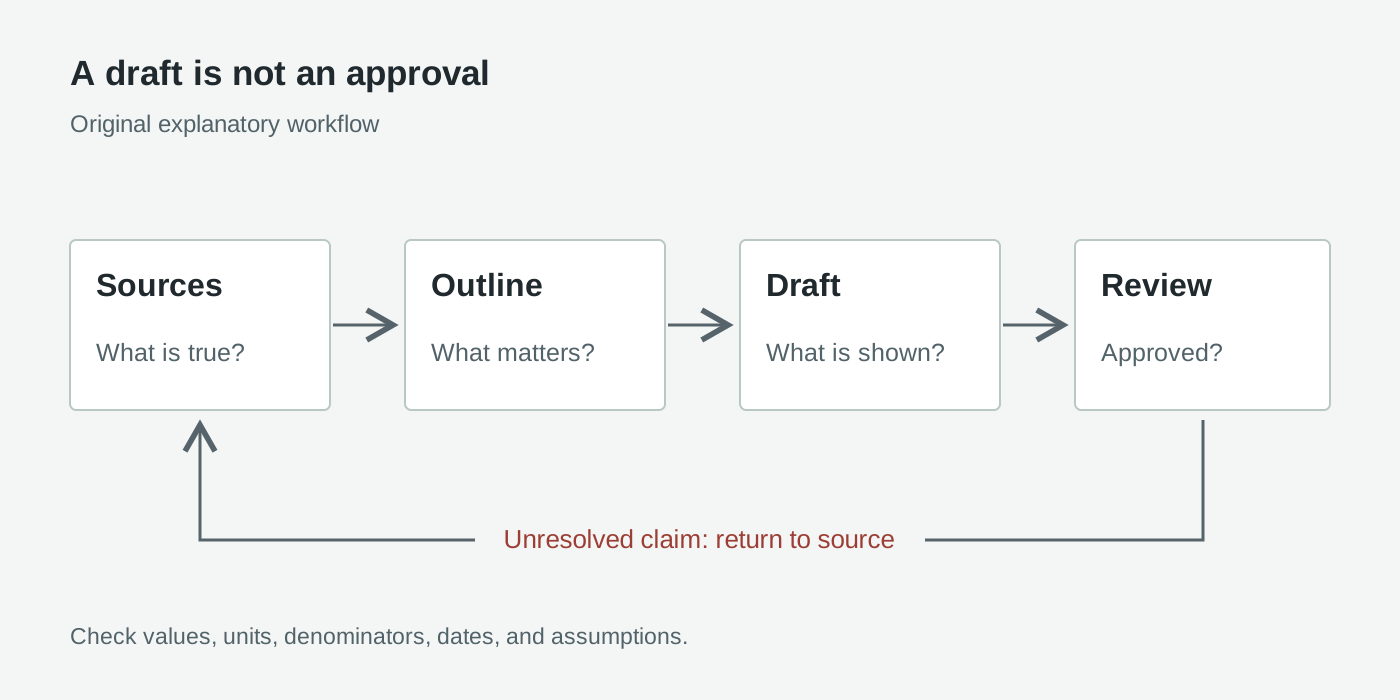
Original explanatory diagram, not a product screenshot. Review sends unsupported claims back to the source, not straight to publication.
Your acceptance criteria should be specific enough for another person to check. For a six-slide pilot deck, require six slides, one decision, a source for every quantitative claim, visibly labeled assumptions, and no unresolved factual placeholders. Make these requirements part of the request rather than a surprise at the end.
Practice with a public-facing report that contains no private data
Imagine a fictional community program preparing a public annual update. This synthetic table is the complete source, not a claim about a real organization:
| Metric | Prior year | Current year |
|---|---|---|
| Workshops delivered | 40 | 50 |
| Attendee visits, including repeat attendance | 800 | 1,100 |
| Program spending, USD | 20,000 | 27,500 |
Copy the table into your task, label it Synthetic practice dataset, and add:
Create a six-slide public-facing program report in Space using only the
synthetic table above. Label the deck "Fictional practice example."
Outline: purpose, workshops, attendee visits, spending, interpretation,
and questions for next year. Use editable charts where appropriate.
Show absolute values and calculate year-over-year changes. Preserve USD units.
Do not call attendee visits unique people, infer causes, or invent testimonials.
Include the source table and formulas in a final review note in this task.
Stop before sharing or publishing anything.
Work the numbers yourself before reviewing the charts. Workshops increased by 10, or 25%: (50 - 40) / 40. Attendee visits increased by 300, or 37.5%. Spending increased by $7,500, also 37.5%. Spending per attendee visit remains $25 in both years: 20,000 / 800 and 27,500 / 1,100.
That last calculation changes the story. Higher total spending does not establish worse unit efficiency, and more visits do not establish more unique participants. Require these distinctions in the slide titles, not just a caveat buried in small print.
Accept the draft only when every chart reproduces the table, both years are labeled, and all calculated percentages match. Reject a claim such as "community reach grew 37.5%" unless the deck defines reach as visits. For a real report, replace the synthetic source with approved public records and retain their publication date, page or table number, and URL.
Build a lesson around a misconception, not a wall of text
For a classroom example, use a fictional poll to teach percentages and percentage points. No student names, grades, or individual responses are needed. Give the task this self-contained brief:
Create five slides in Space for a 15-minute introductory lesson on
percentages versus percentage points. Use this fictional poll:
Class A: 12 of 20 prefer option X. Class B: 18 of 20 prefer option X.
Outline: prediction, source counts, calculations, comparison, exit question.
Use large labels, a directly labeled chart, and short explanations.
Keep the exit-question answer out of the student-facing slides; put it in
a separate teacher review response. Do not claim these are real students.
Ask me to approve the outline before creating the deck.
The checked answers are 60% and 90%. The difference is 30 percentage points, while the relative increase from 60% to 90% is 50%. Both comparisons can be correct; they answer different questions. Keep the denominator of 20 visible so learners can reconstruct each calculation.
For the exit question, change the second count to 16 of 20. The answer becomes 80%, a 20-percentage-point difference, or a relative increase of about 33.3%. Your acceptance test is whether a learner can explain the denominator and distinguish those two comparisons without reading a paragraph aloud. A colleague should check the answer material separately before classroom use.
Make a pitch distinguish demand from assumptions
A pitch needs a clear request, but clarity must not turn assumptions into traction. Consider a fictional subscription service with no customers yet. Use the following as a scenario calculation, not investment evidence:
Create a seven-slide concept pitch in Space for a fictional service.
Audience: an internal pilot committee. Ask: approve a four-week discovery pilot.
Outline: problem hypothesis, intended users, concept, validation plan,
scenario economics, risks, decision. Label every slide "Concept scenario."
Illustrative inputs: 200 paying accounts at USD 15 per month; monthly fixed
costs USD 2,400; variable costs USD 3 per account per month.
There are no actual customers, interviews, or revenue. Do not invent them.
Calculate scenario revenue, contribution, and break-even accounts; show formulas.
Use placeholders for missing evidence and stop before external sharing.
The scenario produces $3,000 in monthly revenue. Variable costs are $600, leaving $2,400 before fixed costs and $0 after them. At a $12 contribution per account, break-even is 200 accounts: 2,400 / (15 - 3). This simplified model excludes taxes and other unspecified costs.
Check that annual and monthly units never mix. Require an explicit assumptions label beside the chart and a validation plan that asks whether people will pay, rather than claiming that they already do. The acceptance criterion is an honest pilot decision, not an impressive-looking revenue curve.
Edit individual elements before rewriting the whole deck
The Slides Help Center documents direct editing of text, images, shapes, tables, and charts. For a targeted AI revision, select an element, choose Request edits, and describe the change; the prompt bar handles deck-wide requests. Editing guidance
Use direct edits for an exact title or label. For images, OpenAI describes both uploaded visuals and custom generation; use assets you are authorized to share and distinguish illustrative images from documentary evidence. Official Slides examples
For a shape-based process diagram, ask for fewer steps and explicit direction, then inspect whether the arrows communicate the intended sequence. For charts, change the source values rather than merely asking for a more persuasive appearance. Check totals, units, axes, and category order after every substantive revision.
A bounded request is easier to review than "make it better":
Revise only slide 4. Shorten its title to one factual sentence.
Keep all source values unchanged. Replace the decorative graphic with a
directly labeled comparison chart. Preserve the other slides and flag
anything that cannot be supported by the supplied table.
Give collaborators the access their job actually requires
Open the deck's sharing controls in Space, invite the intended collaborators, and choose view or edit access. Slides currently has no separate comment-only role. Editors can work on the same deck simultaneously and use shared comments, including mentions of teammates or ChatGPT for revisions. Slide collaboration permissions
Have one person own the story, another verify sources, and another inspect presentation quality. Those are suggested team responsibilities, not additional product permission levels. Agree which slides each editor will revise, and avoid sending overlapping deck-wide AI requests during a review session.
A useful comment identifies the object, problem, and acceptance condition: "Slide 3 calls visits people. Restore 'attendee visits,' preserve 1,100, and check the title and chart label." After a revision, read the changed slide before considering the feedback addressed.
Confirm that each collaborator can open the deck with the intended account. Separately check access to linked sources; permission to view shared work does not automatically unlock the source behind a link. Source-access guidance
Treat sharing, exporting, and publishing as different decisions
Sharing a deck controls collaboration. Exporting creates a deliverable for another tool or audience. Publishing a website is a separate Sites workflow, not a consequence of inviting a deck editor. Sites documentation
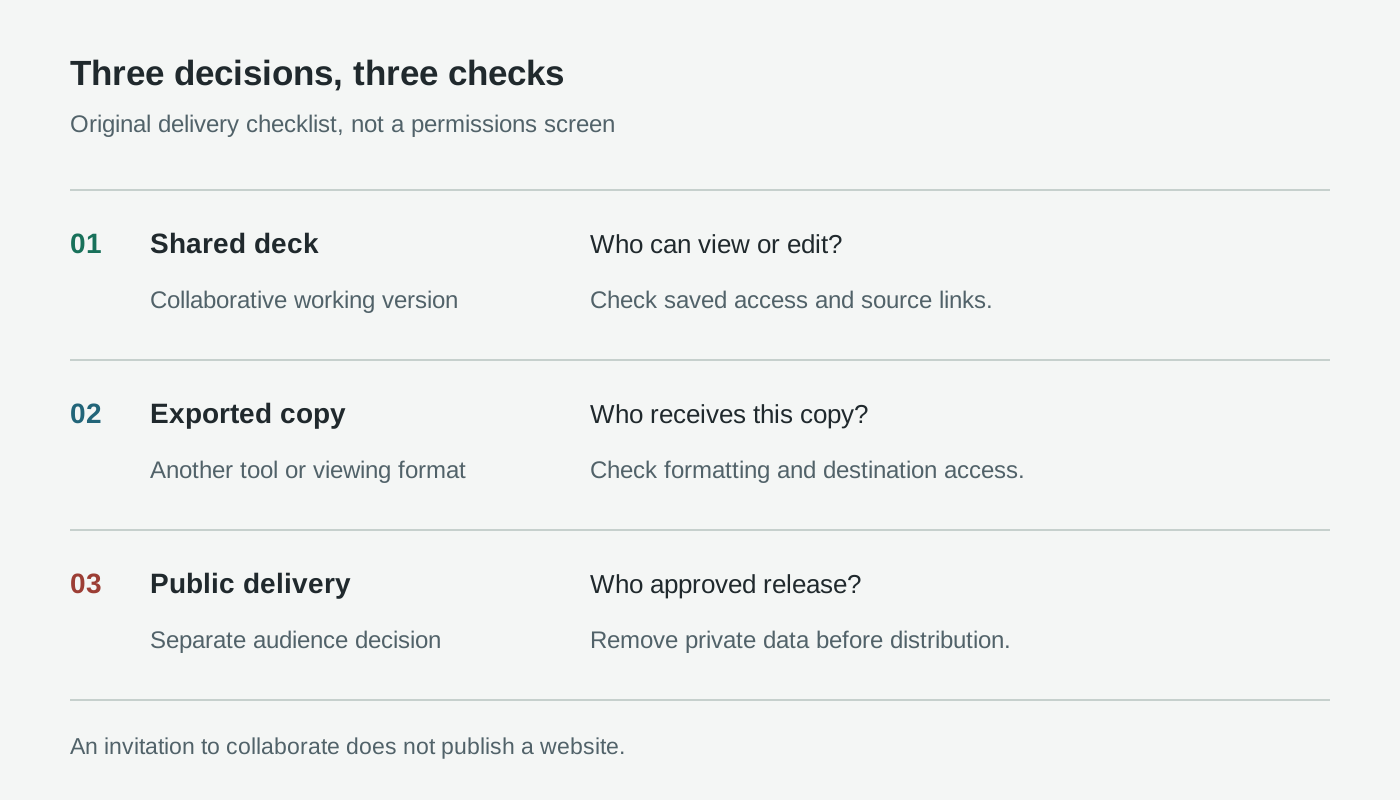
Original delivery checklist, not a permissions screen. Review the audience again whenever content leaves the shared deck.
Before inviting people, remove personal or confidential material that does not belong in the presentation. OpenAI's Space guidance distinguishes private chats from information copied into shared content: linked files retain separate permissions, but a copied summary can reveal their contents. On personal accounts, another collaborator's agent interaction follows that person's training settings, not yours. Space data controls
OpenAI does not train on Business and Enterprise data by default. That does not replace your organization's approval, retention, or external-sharing policies. Enterprise privacy
Use a redacted practice copy first. Check charts, comments, attached material, and notes for identifiers before external delivery. If information was shared incorrectly, stop distribution and involve the owner or administrator; disabling new Enterprise shares alone does not revoke existing shared access. Space administration
Choose the delivery route, then inspect that version
The documented routes differ by client:
| Route | What it is for | Your final check |
|---|---|---|
| Present inside ChatGPT | Deliver the deck directly | Readability and presentation flow |
Web export to PowerPoint .pptx | Continue editing a PowerPoint file | Fonts, charts, and slide geometry |
| Web export to PDF | Distribute a viewing copy | Every page and any included notes |
| Web export to Google Slides | Continue in Google Slides | Layout and destination sharing |
| Desktop opening in PowerPoint or Keynote | Work in an installed application | App availability and converted content |
These presentation and export paths are documented in OpenAI's Space getting-started guide. The desktop options depend on the relevant apps being installed; they are not a promise that every computer has Keynote or PowerPoint. Keep the shared deck as your agreed working version and identify which exported copy has been approved.
Inspect accessibility in the actual delivery format. Use descriptive titles, readable text, strong contrast, and chart labels that do not rely on color alone. Provide text equivalents for essential visuals, and check reading order and alternative text in the destination editor where supported. A PDF export is not, by itself, proof of an accessible PDF.
When something is missing, check the boundary first
If Slides is absent, verify rollout eligibility, Space access, and your current workspace before rebuilding the task. If collaboration is unavailable, have the owner check saved permissions and organizational controls rather than passing around an unrestricted link.
On Windows, a local task may create .pptx files instead of collaborative Slides when the required MXC component is unavailable. OpenAI says Windows 10 does not support that component; Windows 11 may require an update or organizational enablement. Use cloud mode or the web for collaborative Slides. Windows requirements
For wrong numbers, return to the source table and formulas. For broken layout after export, correct and recheck the destination copy. Neither problem is solved by making the opening slide more attractive.
The bottom line: a finished deck is a checked decision
Our view is that the useful change is shared revision, not simply automatic slide generation. Begin with a small source set, approve the outline, and give each reviewer a concrete job. The deck is ready when its story, evidence, permissions, and delivery copy agree.
Sources and product visuals
Checked October 20, 2026. See OpenAI's Slides product gallery for actual interface examples and official training walkthroughs for demonstrations. The diagrams here are original explanations; the worked examples are synthetic, not reported hands-on results.
Keep the research behind your next deck
Telli.sh can help organize source links, research notes, and review decisions before your next presentation. Keep that record alongside the approved deck; this is not a ChatGPT Slides integration. Create a Telli.sh account