Apple Creator Studio brings the assistant into the file you are editing
Apple's planned November update connects creative editing with contextual assistance. What changes for music, images and documents, which beta limits matter, and how to evaluate the workflow.
The awkward part of asking an assistant for help with a presentation is often explaining the presentation. You copy a paragraph, describe the chart and hope the answer still fits when you return to the file.
On October 27, 2026, Apple announced a Creator Studio update planned for November, free for existing subscribers. The announcement combines creative editing improvements with contextual assistants in Logic Pro, Keynote, Pages and Numbers. The new assistants are U.S. English betas, with Apple Intelligence hardware and operating-system requirements. Apple Newsroom.
The useful question is what an assistant can do when the file itself supplies the context. This guide explores three practical workflows, the difference between advice and editable changes, and the checks that make the update worth evaluating when it reaches your device.
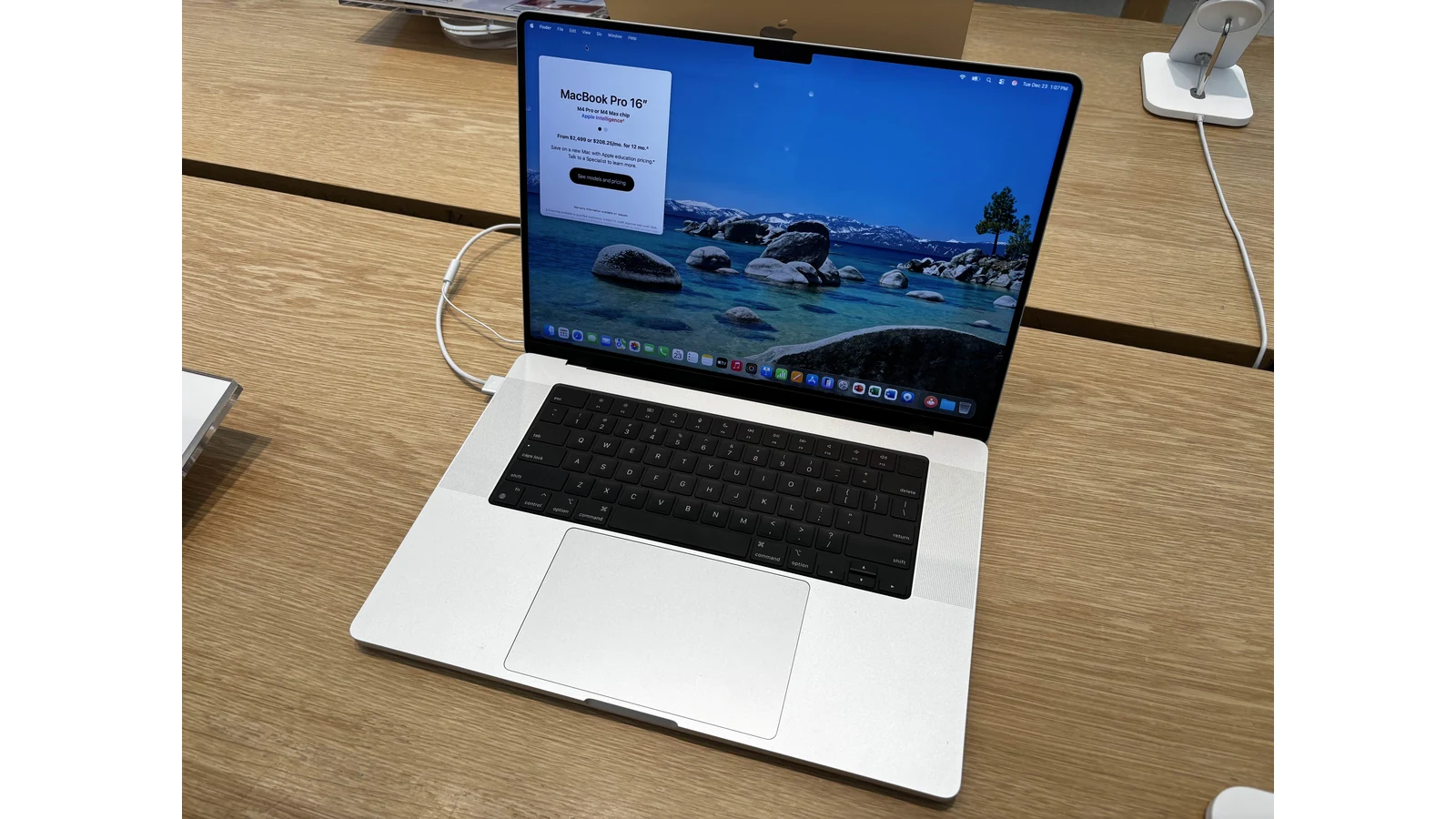 A 16-inch M4 Pro MacBook Pro photographed in 2025, illustrating Apple’s Mac creative-work environment. It does not show Creator Studio’s new assistants. Photo: AzureSaturn, CC0; resized with margins. Image source · License and image notes. Official product reference.

The file can carry more context than a carefully written prompt
A document contains relationships that are hard to describe in chat. A heading belongs to a section; a chart depends on particular cells; an image has a position and a purpose on a slide. A useful assistant needs those relationships as well as the words a person types.
For the reader, the attraction is fewer context handoffs. You want to ask for a clearer opening while the assistant can work with the actual opening. You want to discuss a chart while keeping its values attached. The potential benefit comes from keeping intent and artifact close enough to inspect together.
Our take: this is a change in the location of assistance. A separate chat can be excellent for brainstorming, but transferring its answer into an editable file creates another task. Assistance inside the editor has a chance to shorten that transfer, provided the result remains understandable and adjustable.
Think of the assistant as an extra chair at the editing desk. It can propose a change while the source material is still open. The person responsible for the file must still be able to point at the change, explain its purpose and decide whether it belongs.
That last requirement matters more than a polished demonstration. A gorgeous slide is difficult to reuse if its text, chart and image become a single flattened object. A subtle revision can be more valuable if it preserves the structure that the next collaborator needs to edit.
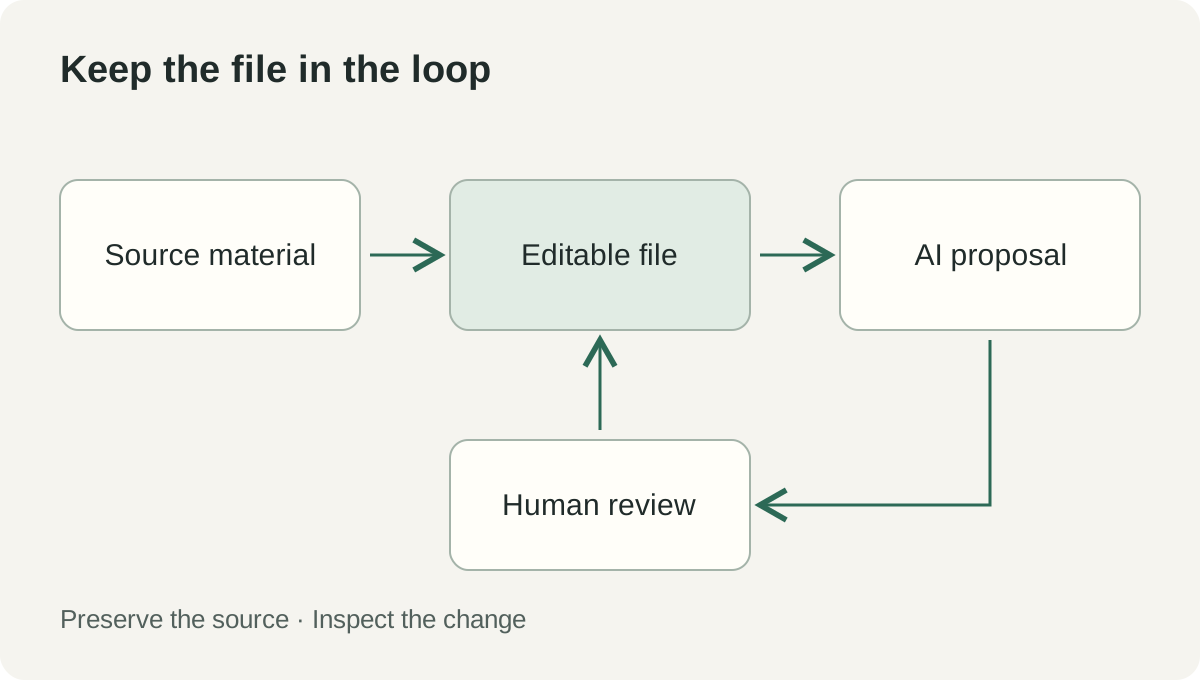 Original workflow diagram: keep source material, an editable file and review connected. This is an editorial model for evaluating the Creator Studio suite, rather than an Apple system diagram.
The announcement spans several jobs, with different release conditions
Apple's October 27 announcement describes Generate Fill for selected image regions in Pixelmator Pro, closer Final Cut Pro and Pixelmator editing, and assistance with music and documents. It also announces MCP access for Keynote, Pages and Numbers on macOS 27 or later. Some Freeform additions are planned for December. These are separate feature conditions within one suite announcement. Release details and requirements.
The Creator Studio product page, checked November 2, brings video, image, music and productivity apps under one subscription. That breadth creates an attractive possibility for someone who carries one idea through several formats. It also means that evaluating “the AI update” as a single switch will be misleading.
Start with the app and task you actually use. A music producer may care about assistance inside a project; a presenter may care about editable layouts and charts; a video editor may value a faster image round trip. Each person can reach a different purchasing conclusion without disagreeing about the suite's overall ambition.
Keep the update announcement separate from a confirmed installation. Before beginning a client deliverable, check the installed app version and the feature's availability on that device. A November release window is useful planning information, but it is not a guarantee that every announced capability is active on November 2.
Three illustrative workflows show what to test
A presenter can improve a deck without losing the argument
Imagine a consultant preparing a six-slide proposal from an approved brief. The first task is to preserve the proposal's commitments: scope, deadline and price. The assistant's role would be to improve explanation and arrangement around those commitments, rather than quietly invent stronger promises.
A useful first request would name the audience, the slide and the problem: “Make this slide's three implementation stages easier for a nontechnical buyer to compare.” That is easier to review than asking the assistant to improve the whole deck. The presenter can inspect the order, labels and emphasis against the approved brief.
The next check concerns editability. Can you select the revised heading, adjust a diagram element and change a chart value through the normal tools? If another teammate opens the file, can that teammate continue the work without repeating the prompt? These are practical acceptance criteria for an in-app workflow.
For an illustrative second pass, ask for a shorter title while keeping the same commitments. Compare the result with the brief again. The point is to learn whether successive assistance preserves the argument as the presentation becomes more polished.
An editor can change one image while protecting the surrounding sequence
Imagine a short product film whose background contains an unwanted distraction. The desired change concerns one region of one image, while the sequence still needs consistent branding and framing. A selection-based image edit can be evaluated against that narrow intention.
Before editing, preserve the original asset and identify the area that may change. Afterward, inspect the boundaries at normal viewing size and at a closer scale. Check surrounding lettering, product edges and details that carry factual meaning. The most persuasive overall image can still contain an unacceptable local alteration.
Then evaluate the handoff back to the sequence. Does the edited asset appear in the correct place, and can a collaborator identify which version was approved? For recurring work, version clarity can matter as much as the visual quality of a single generated fill.
This is also where rights and authenticity enter ordinary creative judgment. Changing a fictional background for an advertisement has different implications from changing evidence in a documentary. Decide what the asset is allowed to represent before asking a tool to improve it.
A musician can use assistance to learn a project while keeping musical choices audible
For an illustrative music session, consider a songwriter who understands the desired mood but needs help navigating a complex project. The first useful request could be a bounded setup question about a vocal track. The songwriter then listens and inspects the project rather than accepting a textual explanation as the finished result.
Work on a duplicate session and keep the original recording intact. Make one requested change, compare the relevant passage and note whether the change serves the performance. That practice keeps the evaluation centered on the music instead of the apparent intelligence of the conversation.
A second useful request could ask the assistant to explain the purpose of a proposed adjustment. If the explanation helps the musician make the next choice independently, the assistant has educational value as well as production value. The outcome is a more understandable project, not just a different sound.
For a professional handoff, preserve the approved session and the exports required by the collaborator. An assistant-assisted process still needs clear ownership of arrangement, recording rights and final approval. Those responsibilities travel with the work whichever interface produced the suggestion.
Advice, file editing and external automation need different checks
There are at least three ways an assistant can help a creator. It can explain a technique, propose a change inside an editor, or allow an external tool to operate on a file. The review burden grows with what the interaction can change.
| Mode of assistance | Useful question to ask | Acceptance check |
|---|---|---|
| Advice alongside the work | Does this explain the next step clearly? | Reproduce the step in the editor |
| An editable change in the file | Does this improve the intended element? | Inspect the changed content and its structure |
| External automation through an integration | Is this tool allowed to read or change this material? | Review scope, resulting edits and recovery path |
Apple's announced MCP support makes the third category relevant to its document apps. MCP provides an integration path; the practical value still depends on the external agent, the exposed operations and the permissions chosen. Evaluate the whole chain that reads and changes your file.
For example, an illustrative automation might update a recurring presentation from approved source figures. A successful run would preserve the right units, use the intended source and leave an editable result. A completed tool call alone would not establish any of those outcomes.
Choose a small file for the first integration exercise. Give the external tool only the material needed for that task, retain a copy and compare the result. This is normal change control for a creative artifact: the assistant's interface does not remove the need to know which content changed.
Numbers and charts need a source before they need a style
Document context helps an assistant find material; it does not decide which material deserves to be believed. A spreadsheet can contain stale rows, mixed currencies or a subtotal that looks like a separate observation. A chart built from those cells may be visually clean and conceptually wrong.
For an illustrative monthly report, first mark the source range, reporting period and unit. Then ask for a chart that answers one question, such as how the approved monthly total changed. Verify the underlying values before reviewing colors and typography. That sequence makes a useful distinction between correctness and presentation quality.
If the assistant proposes adding background facts, decide how they will be verified. An external statistic belongs with a source and date. A figure supplied by your own team belongs with the responsible owner and reporting definition. Mixing the two without labels makes later review unnecessarily difficult.
The same principle applies to a slide title. A title like “Growth accelerates” can make a stronger claim than the data supports, even when every bar is drawn correctly. Ask whether the heading accurately describes the comparison and whether the reader can identify the period without guessing.
For shared files, keep that reasoning close to the artifact. A short note stating “approved revenue, excluding refunds, calendar month” can prevent repeated misunderstandings. The best assistance makes a document easier for the next person to understand as well as easier for the current person to create.
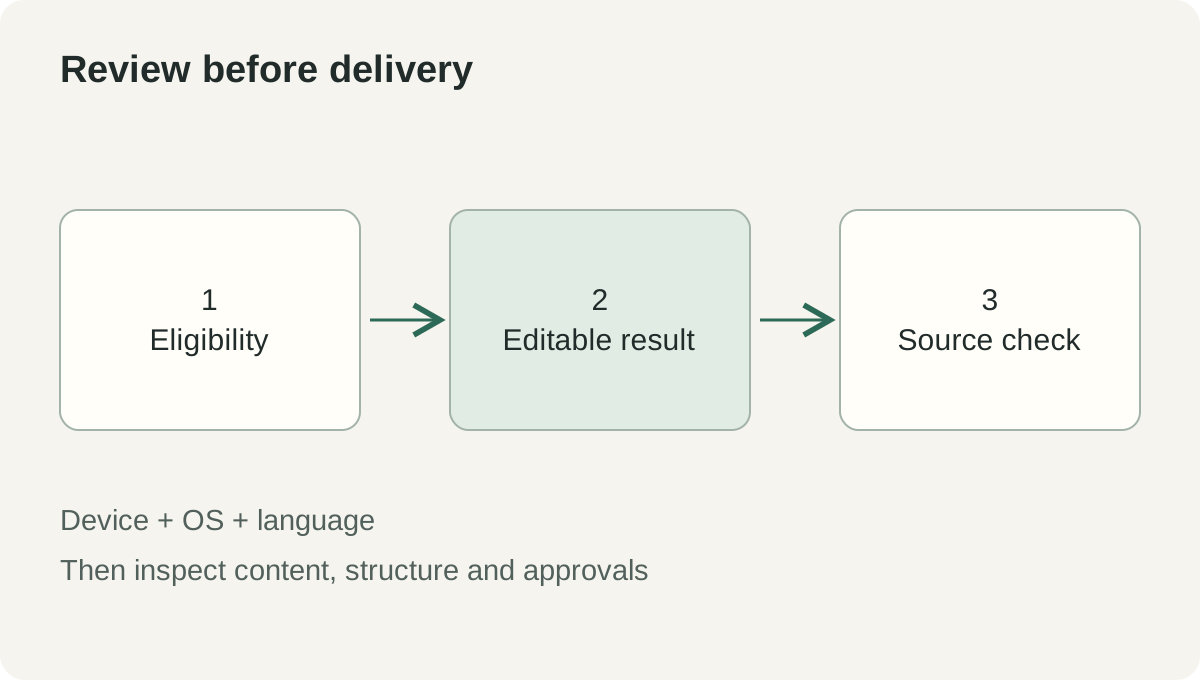 Original evaluation aid: confirm eligibility, inspect the editable result and verify source material before delivery. The release conditions come from Apple's announcement; the review sequence is editorial guidance.
Begin with eligibility, then one reversible task
Apple's published requirements place the Logic assistant on an Apple Intelligence-capable Mac with macOS 27 or later. The document assistants require compatible Apple Intelligence devices on iOS 27, iPadOS 27 or macOS 27 or later; their announced beta language is U.S. English. Requirement footnotes.
- Check the feature, rather than only the subscription. Read the requirements for the particular app and assistant. Confirm the installed OS, hardware support and beta language before planning the trial.
- Wait for the applicable update to appear. Use the App Store and the app's current release information to verify availability. Keep production deadlines independent of an announced release window.
- Duplicate a small, representative file. Use approved material, preserve the original, and choose a task with an obvious before-and-after comparison.
- Request one bounded change. Name the audience or creative intention and the element that may change. Ask to preserve figures, names and commitments where those matter.
- Inspect the native result. Check text, layers, chart values or project structure through the normal editing tools. Confirm that another person could continue working with the file.
- Evaluate integrations separately. If testing an external MCP tool, review its access and actions on the duplicate before connecting more material.
- Keep the approved version and a short decision note. Record what the assistant helped accomplish and what still needed manual work. Use that evidence for the subscription decision.
That last step gives the trial a useful economic frame. Count time through approval, including correction and handoff. A feature that produces a fast first draft but requires extensive repair may be less valuable than a smaller improvement that fits the team's established workflow.
For multilingual teams, test the actual working language when the feature supports it. A U.S. English beta is a real limitation for someone whose deliverables and colleagues use other languages. It should be part of the adoption decision rather than an assumption hidden behind a translated product announcement.
The strongest creative assistant leaves you with a file you can still own
Creator Studio's announced direction brings assistance closer to the thing being made. That matters because creative work moves through many small decisions: selection, arrangement, explanation, correction and approval. An assistant becomes valuable when those decisions become easier to make and easier to revisit.
When the update is available for your workflow, judge it by the artifact you can hand to someone else. The enduring result should be an editable project whose choices remain understandable, even after the conversation that produced them has ended.
Sources
- Apple Newsroom: Creator Studio adds powerful new AI features and more creative tools, October 27, 2026; checked November 2, 2026.
- Apple Creator Studio product page, checked November 2, 2026.
Preserve the material behind a decision
Telli.sh is one option for keeping authorized source material alongside the notes you have reviewed. Create a note workspace.